
AI 201 Apply: Everyday Tasks
Build PowerPoint Decks with AI
22 June 2026
Use ChatGPT and Microsoft Copilot to transform lengthy reports and policy papers into presentation-ready slide decks.

Why this matters
Have you ever spent hours building a presentation from a lengthy report?
For many workplace presentations, the most time-consuming part is not creating the slides. It is reading source materials, identifying key messages, deciding what to include, and organising information into a format that stakeholders can quickly understand.
AI can help accelerate this process by:
Summarising lengthy documents
Identifying key insights and messages
Drafting slide outlines
Generating a first draft deck
This allows you to focus on reviewing the narrative, refining the message and preparing for stakeholder discussions.
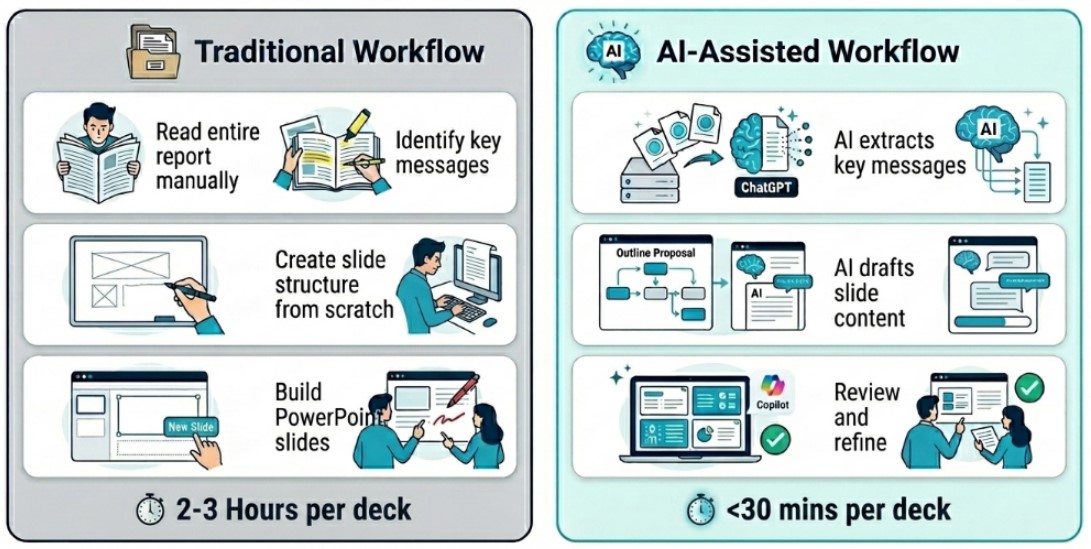
Today's exercise: Building a presentation from a long report
Imagine you want to build a slide deck from a lengthy 20 page report.
Rather than manually distilling keypoints, crafting an outline and building slides, we will use ChatGPT and Copilot to create the first draft of the presentation.
Here's what you need for this exercise
Tools and inputs required:
🛠️ Tool | ChatGPT Enterprise (WOG), Copilot, PowerPoint |
🔗 Feature | Upload feature, Create with Copilot |
📂 Your input | Your Knowledge Base |
Step 1: Create a presentation outline with ChatGPT
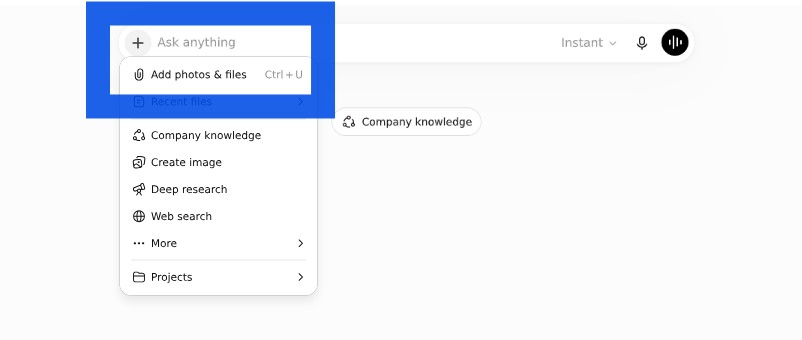
☑️Open ChatGPT Enterprise, click '+' and upload your source document. This will provide ChatGPT the context for it to create the presentation outline.
☑️Prompt ChatGPT to create a presentation outline from the document. You can copy the ready-to-use prompt below.
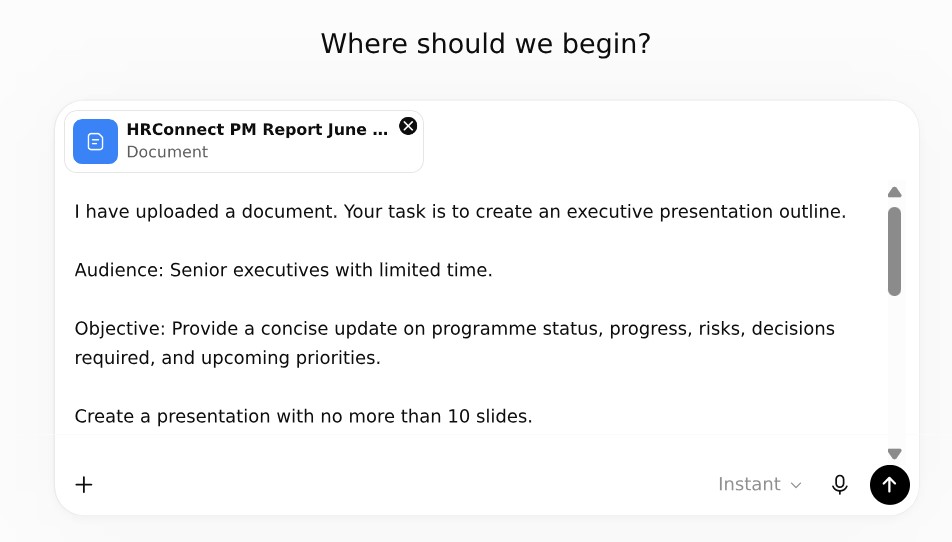
Ready-to-use Prompt
I have uploaded a document. Your task is to create an executive presentation outline.
Audience: Senior executives with limited time.
Objective: Provide a concise update on programme status, progress, risks, decisions required, and upcoming priorities.
Create a presentation with no more than 10 slides.
For each slide provide:
Slide title Purpose of the slide Key messages (maximum 3 bullets)
Recommended visual or chart
Suggested speaker notes (maximum 75 words)
Presentation design principles:
Focus on executive decision-making
Remove unnecessary operational detail
Surface risks and actions clearly
Use plain English
One key message per slide
At the end, identify:
Information that should be removed Information that should be moved to an appendix
Any missing information that executives may ask about
☑️Review the presentation outline. You can refine it further by continuing the conversation with ChatGPT e.g. "support all key points with relevant statistics wherever possible." When you are ready, copy the outline for the next step.
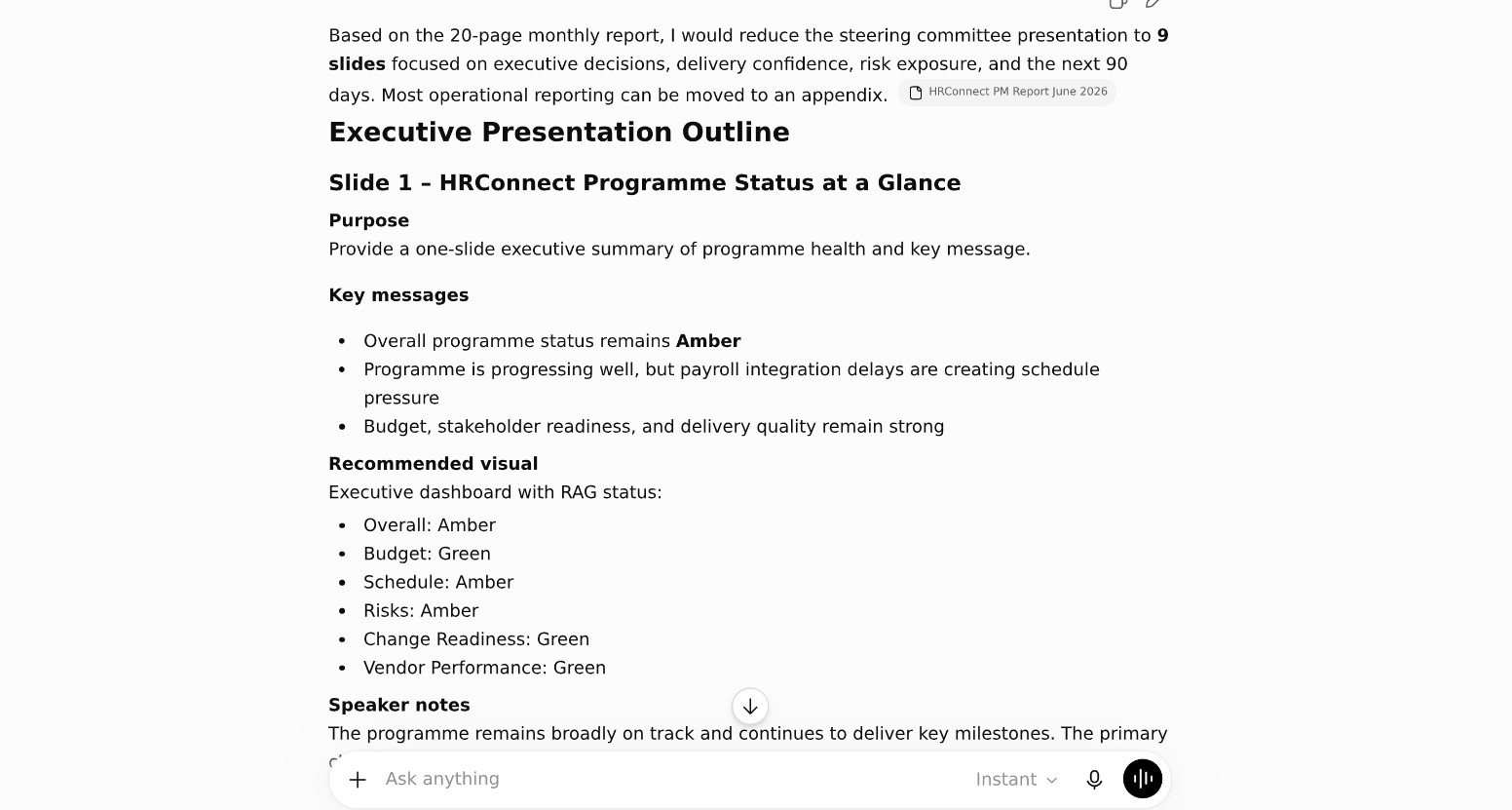
Step 2: Create presentation slides with Copilot
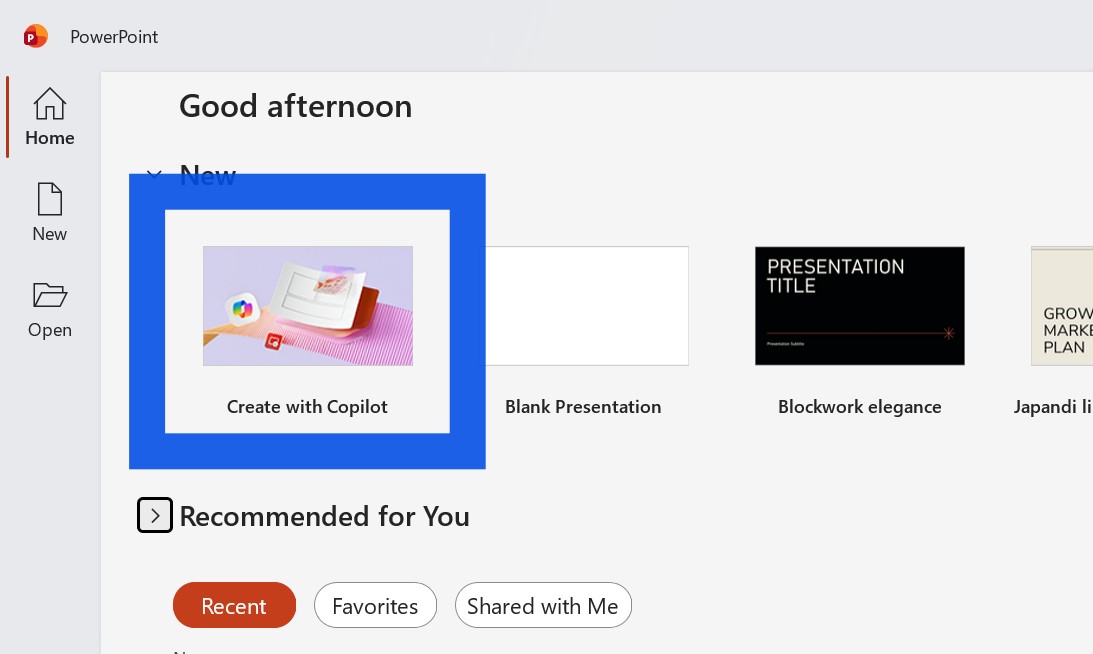
☑️ Start up Microsoft PowerPoint and select 'Create with Copilot'
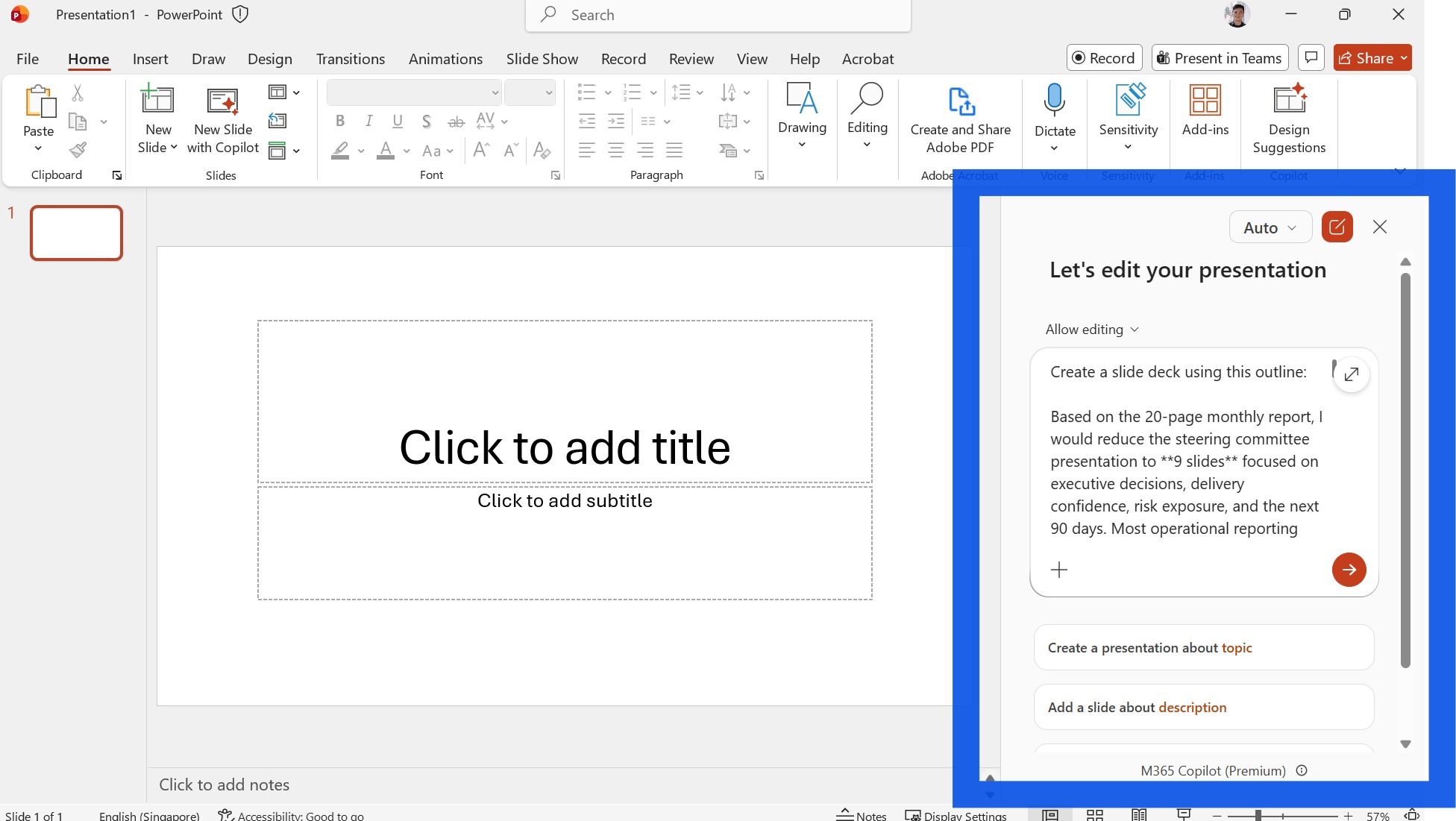
☑️ Copy the slide outline from Step 1 into the chat box and ask Copilot to create the slides. You can say 'Create a slide deck using this outline [paste outline]'
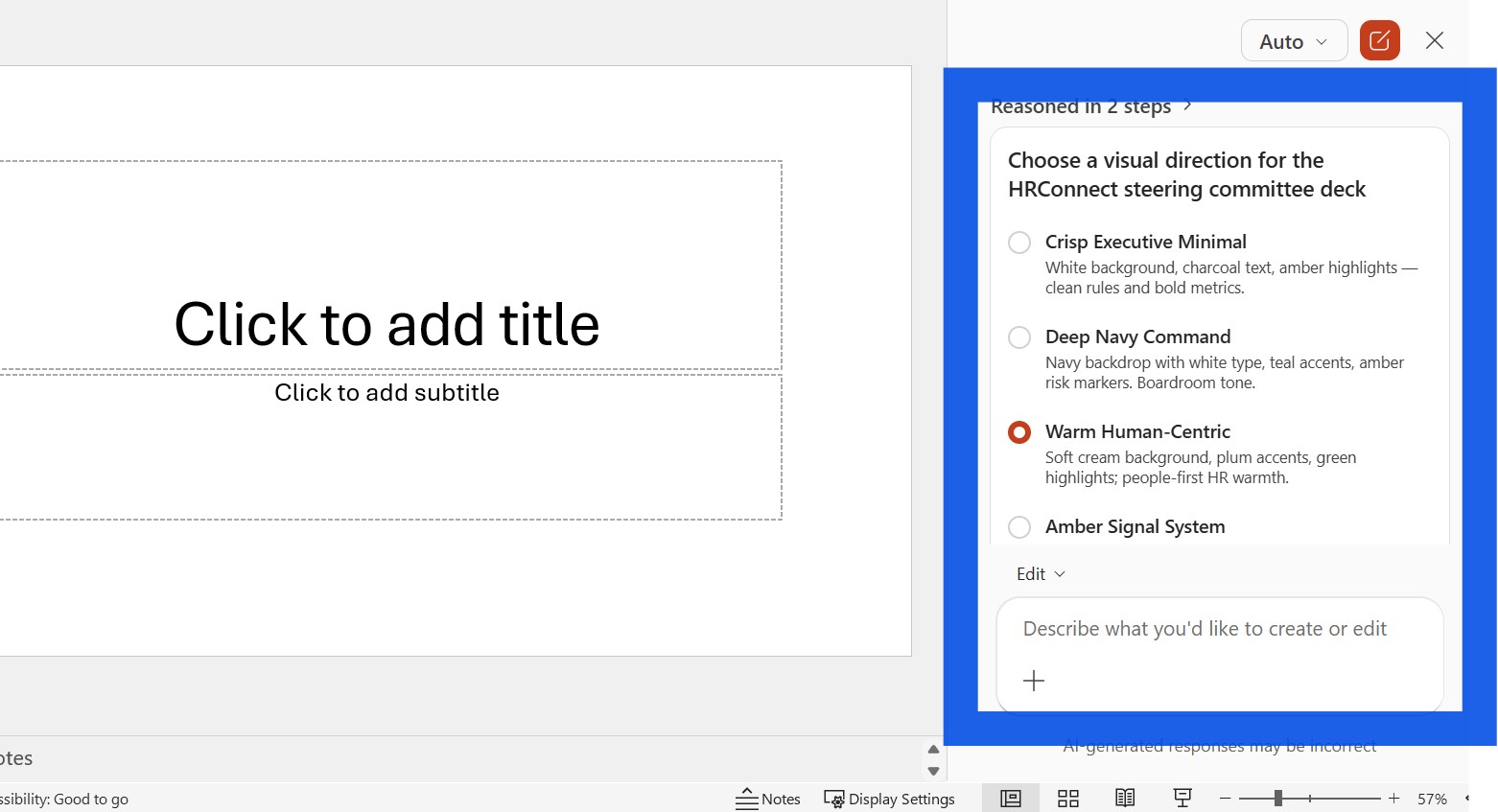
☑️ Copilot may ask some follow-up questions e.g. the visual direction of the slides. Choose from the options to continue. Copilot will start generating the slides.
Step 3: Review the presentation
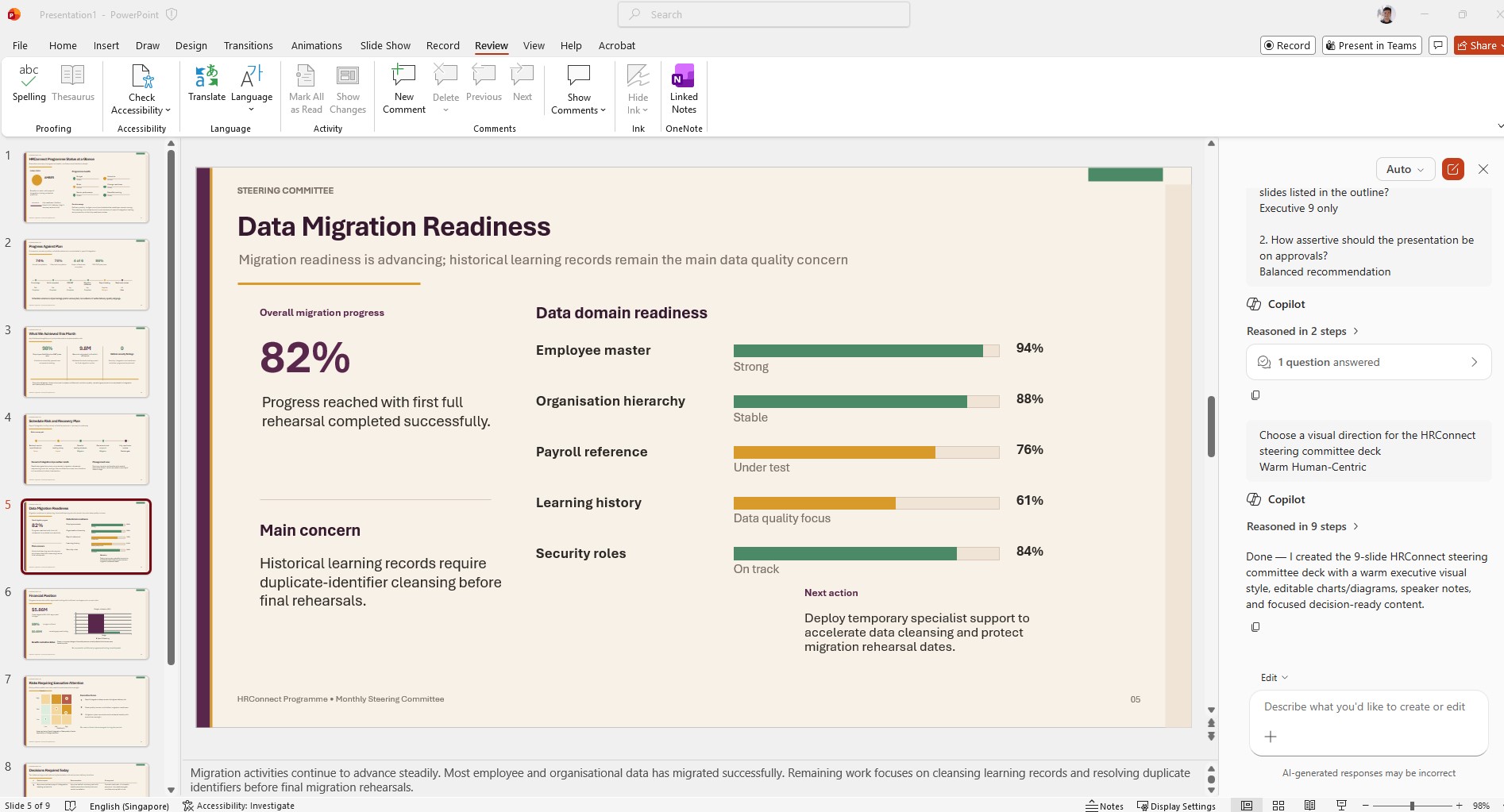
☑️ Review the slides generated by Copilot. If there are any changes you want to make, either do so manually or continue the conversation with Copilot e.g. 'change the color theme to white and blue'
Let's review what we just did:
Every effective AI task is built around five components — together, they spell CRAFT. Let's review how we applied them in our exercise.
C | 📂 Context | Your uploaded source documents |
R | 🎭Role | ChatGPT and Copilot act as a communications advisor and presentation designer |
A | ⚡Action | Extract key messages, create an outline and generate slide content |
F | 📋Format | A structured presentation outline followed by a PowerPoint deck |
T | 🔍Test | Review the outline, validate the slides and check against the source document |
Now it's your turn to try!
Upload a report, meeting paper, project update or strategy document and ask ChatGPT to create a presentation outline. Then have Copilot build the slide deck.
You can do this with other AI tools as well!
📚Further Learning: Copilot in Powerpoint course
Discover how to use Copilot to generate, refine, and enhance presentations, helping you spend less time building slides and more time telling your story.
Start the e-Learning: Copilot in PowerPoint: From Prompt to Powerpoint
Linkedin Login required
📅Following the 12-Week Learning Plan?
Congratulations on reaching Week 6! This guide is part of a 12-week learning plan designed to help you build practical AI skills. You're well on your way to becoming AI fluent.

Preview the 12-Week Learning Plan
12 Week Learning Plan
Week 1 | |
Week 2 | Webinar: Introduction to AI-First |
Week 3 | Webinar: Open AI ChatGPT Foundations |
Week 4 | Webinar: Introduction to AI-First |
Week 5 | Using AI responsibly |
Week 6📍 | Meeting Minutes with AI |
Week 7 | Generate a Daily Morning Brief |
Week 8 | AI Apply 201: Domain Specific Tasks |
Week 9 | Workflow Mapping & Peer Sharing |
Week 10 | |
Week 11 | Your AI Playbook |
Week 12 | |
Week 13 | CAT Brownbag at Lorong |
⏭️Next Guide: Build a Policy Q&A Bot for Your Team
↩️Return to: AI 201 Apply Learning Pathway