Search SharePoint using AI
Learning Pathway:
AI 201: ChatGPT in Everyday Tasks
2 July 2026
Use ChatGPT's SharePoint connector to find, retrieve and synthesise information across documents stored in your agency's SharePoint.
Why this matters
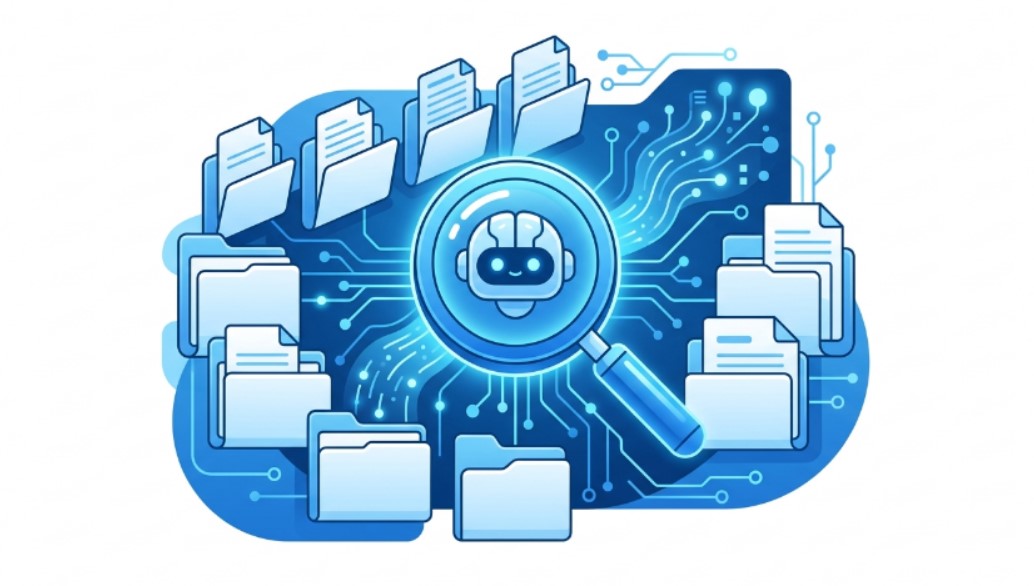
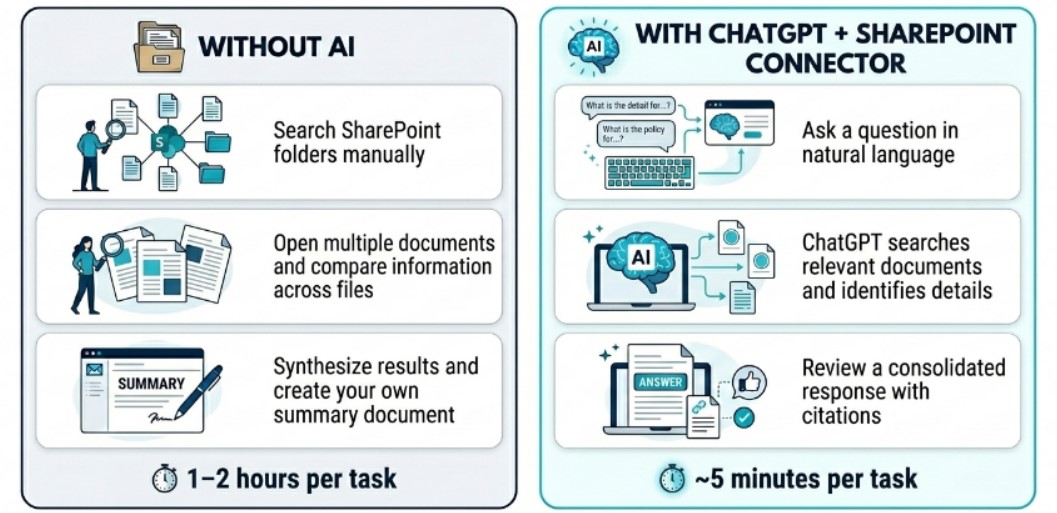
Have you ever been looped into a new project, and spent hours looking through the SharePoint documents trying to understand it? While most agencies store years of information within SharePoint, finding and understanding it often requires manually searching folders, opening multiple documents and piecing together information from different sources.
The SharePoint connector allows ChatGPT to search across documents that you already have permission to access and synthesise the relevant information into a concise response.
Today's exercise: Catching up on a project
Imagine you just got looped into a planning committee for your agency's project. You need to understand the project's current status before attending the next meeting.
Rather than opening and reading every set of meeting minutes individually, we will use ChatGPT's SharePoint connector to search across the project's records and generate a consolidated briefing.
Here's what you need for this exercise
Tools and inputs required:
🛠️ Tool | ChatGPT Enterprise (WOG) |
🔗 Feature | Custom GPTs + SharePoint Connector |
📂 Your input | Your Knowledge Base: The project's past meeting minutes & records |
Step 1: Connect to SharePoint
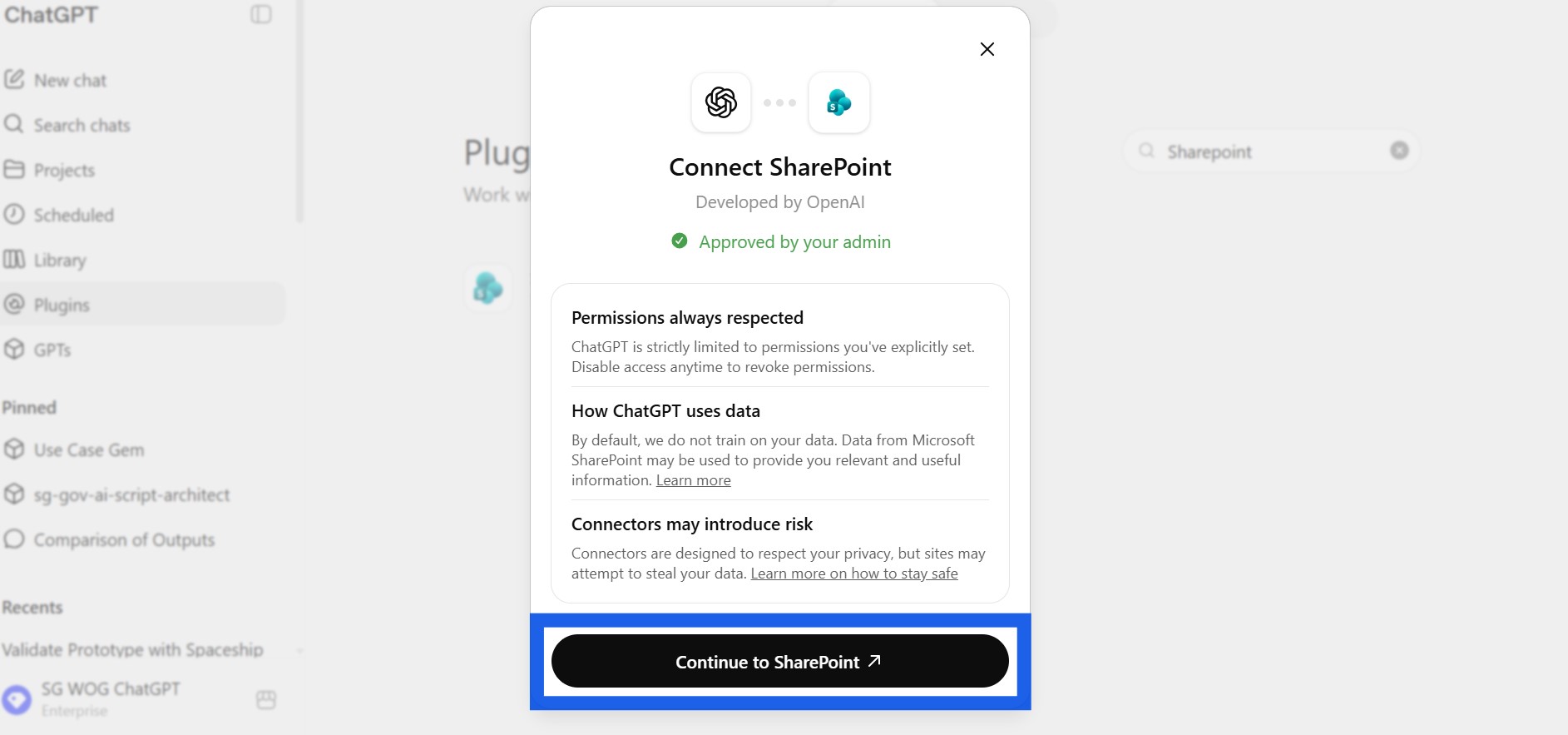
☑️Open ChatGPT Enterprise, navigate to 'Plugins' and look for 'SharePoint'
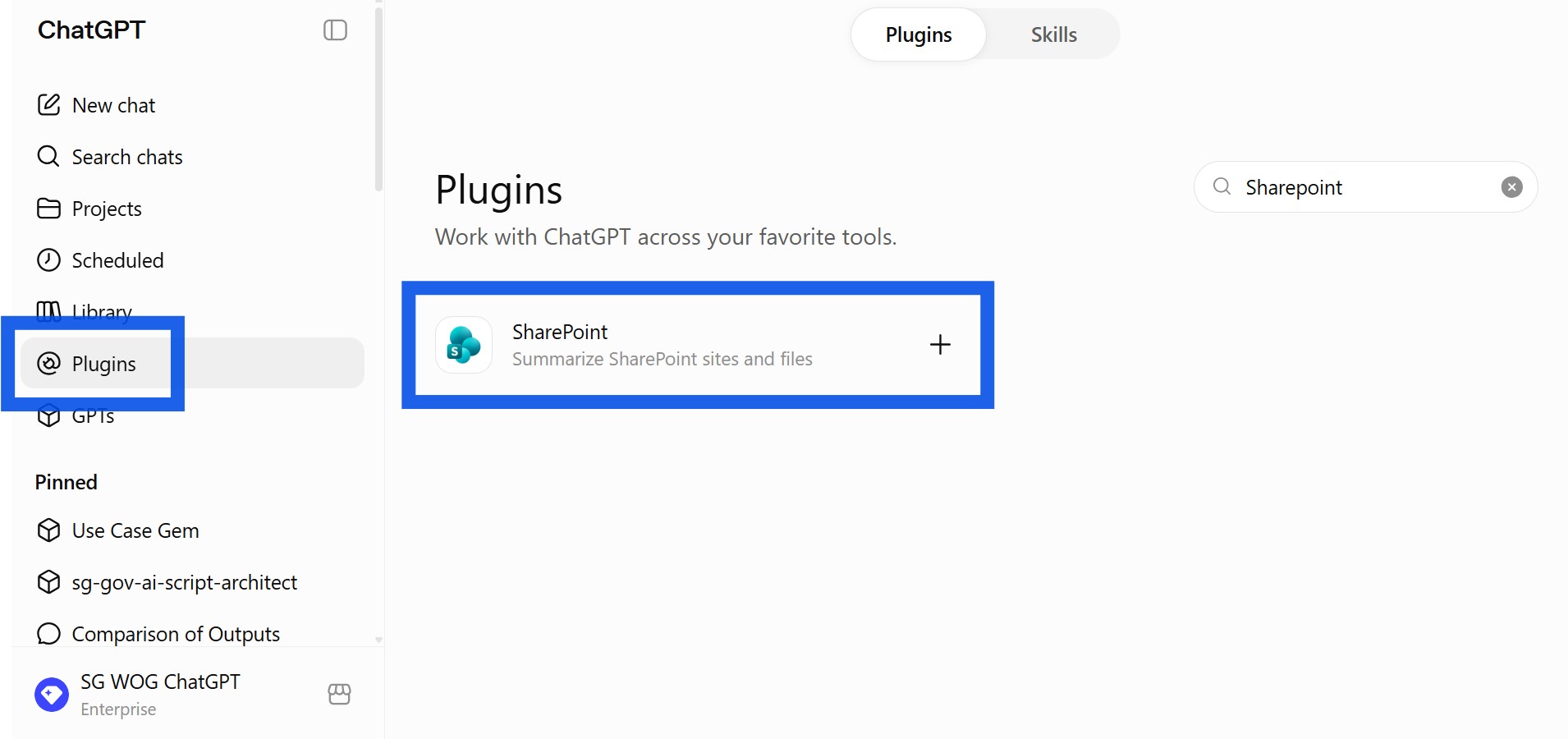
☑️Click '+' and 'Continue to SharePoint'
Step 2: Ask ChatGPT to search for records
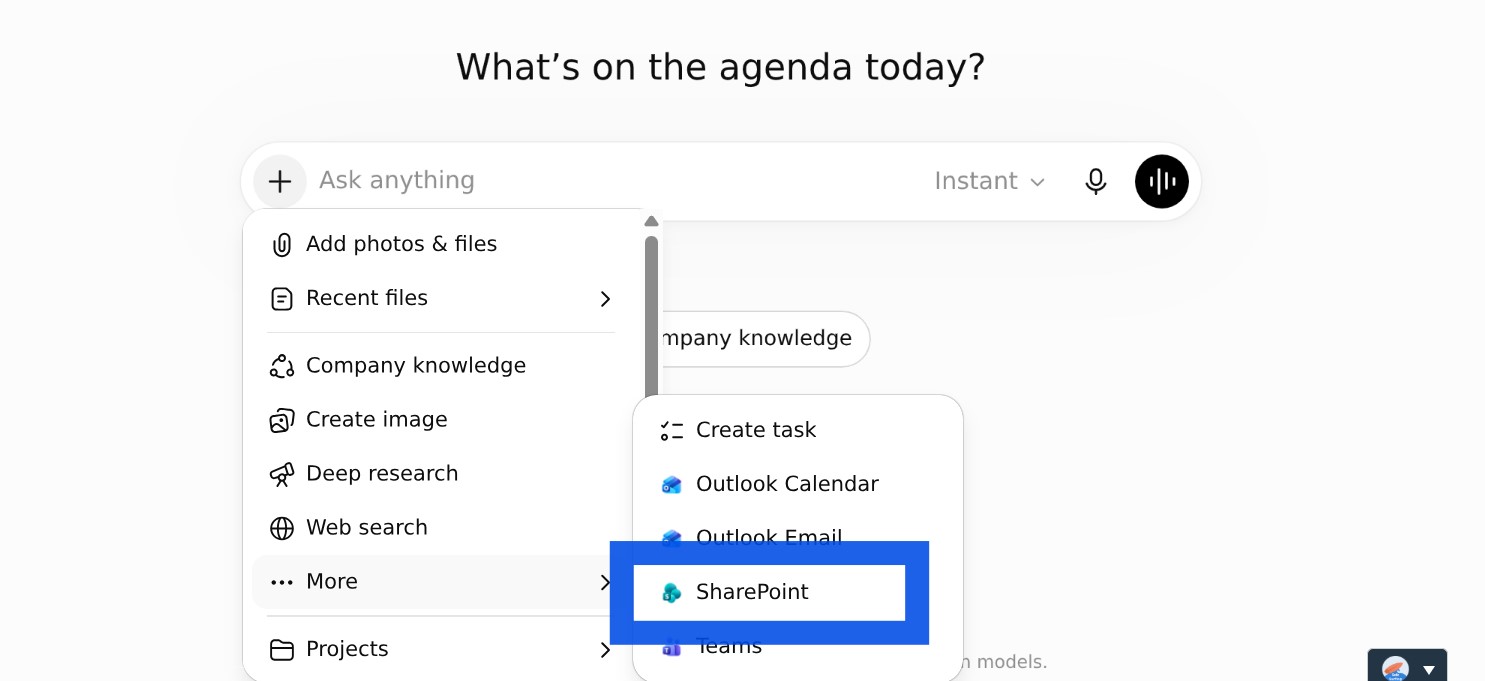
☑️Start a new chat, click the '+', and then 'SharePoint'. This lets ChatGPT know that you want it to search your SharePoint as its knowledge base.
☑️Ask ChatGPT to search for the relevant records, and provide a synthesised briefing note. You can copy the ready-to-use prompt below.
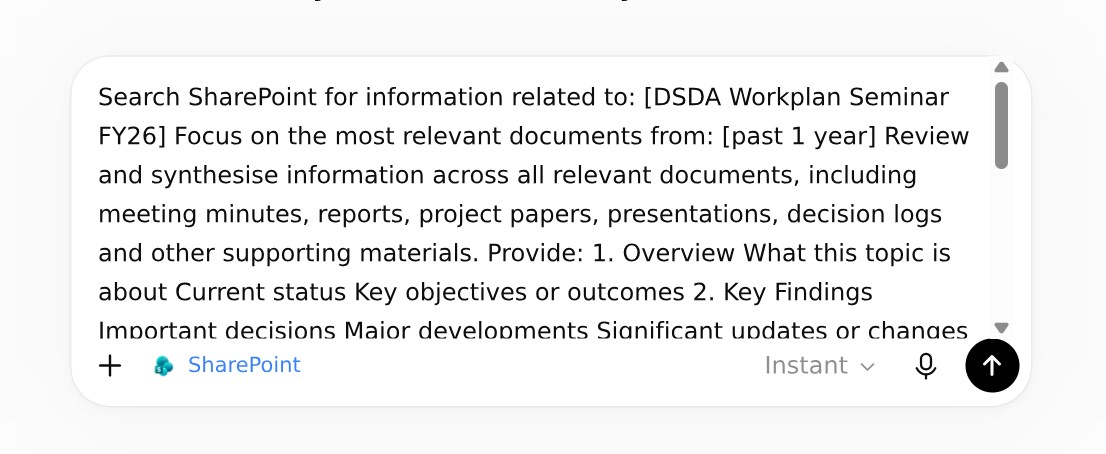
Ready-to-use prompt
Search SharePoint for information related to:
[topic / project / programme / committee / initiative]
Focus on the most relevant documents from:
[time period, if applicable]
Review and synthesise information across all relevant documents, including meeting minutes, reports, project papers, presentations, decision logs and other supporting materials.
Provide:
1. Overview
What this topic is about
Current status
Key objectives or outcomes
2. Key Findings
Important decisions
Major developments
Significant updates or changes
Issues raised or resolved
3. Actions and Responsibilities
Present as:
Action | Owner | Due Date | Status |
|---|
If ownership or due dates are not available, indicate this clearly.
4. Open Issues and Risks
Outstanding questions
Unresolved matters
Key risks or concerns
Dependencies requiring attention
5. Important Dates and Milestones
Upcoming deadlines
Planned activities
Future decision points
Significant events
6. Executive Summary
Provide a concise summary covering:
What has happened
What is important now
What requires attention next
Consolidate information across all relevant documents and remove duplication.
For all significant findings, cite the source document and date.
Present the output so it can be read in under 3 minutes.
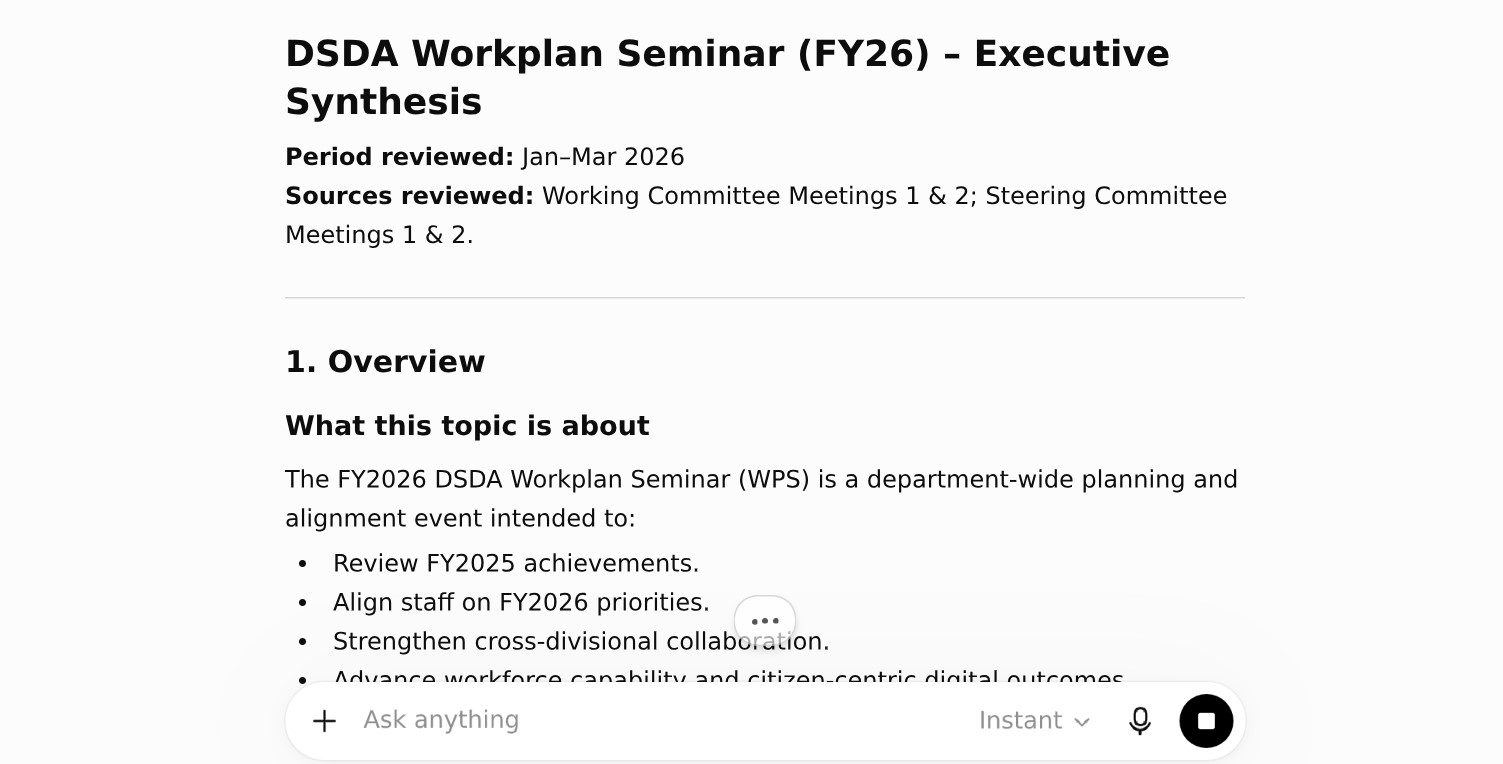
3. Review the generated briefing
☑️ Your consolidated briefing is now ready! Review it, and check its sources for accuracy.
Let's review what we just did:
Every effective AI task is built around five components — together, they spell CRAFT. Let's see how we applied them in our exercise.
C | 📂 Context | Documents stored in SharePoint, including minutes, project papers and reports |
R | 🎭Role | ChatGPT takes on the role of an organisational knowledge assistant |
A | ⚡Action | ChatGPT searches, retrieves, synthesises and summarises information |
F | 📋Format | The response is strucutured with |
T | 🔍Test | Review the output & check sources for accuracy. |
Now it's your turn to try!
Connect ChatGPT to your SharePoint, and ask it questions about your work. For example, "What is the latest status of [your project] according to the documents in my SharePoint?"
The SharePoint connector is a great tool to use when you need to cross reference and look through multiple documents for information.
📅Following the 12-Week Learning Plan?
Congratulations on reaching Week 7! This guide is part of a 12-week learning plan designed to help you build practical AI skills. You're well on your way to becoming AI fluent.

Preview the 12-Week Learning Plan
12 Week Learning Plan
Week 1 | CSDPAI Literacy Module (opens in new tab) |
Week 2 | Webinar: Introduction to AI-First |
Week 3 | Webinar: Open AI ChatGPT Foundations |
Week 4 | Webinar: Introduction to AI-First |
Week 5 | Using AI responsibly |
Week 6 | Meeting Minutes with AI |
Week 7📍 | Generate a Daily Morning Brief |
Week 8 | AI Apply 201: Domain Specific Tasks |
Week 9 | Workflow Mapping & Peer Sharing |
Week 10 | |
Week 11 | Your AI Playbook |
Week 12 | |
Week 13 | CAT Brownbag at Lorong |
⏭️Next Guide: Summarise Microsoft Teams Conversations
↩️Return to: AI 201 Apply Learning Pathway