Summarise Microsoft Teams Conversations with AI
Learning Pathway:
AI 201: ChatGPT in Everyday Tasks
24 June 2026
Use ChatGPT's Microsoft Teams connector to quickly understand lengthy message threads.

Why this matters
Have you ever returned from leave to find yourself needing to catch up on long Teams conversations?
Many teams communicate through multiple Microsoft Teams every day. Important decisions, requests and actions are often buried within long conversations, making it difficult to identify what matters most.
The Microsoft Teams connector allows ChatGPT to review conversations that you already have access to, and generate a concise briefing focused on decisions, actions and outstanding issues.
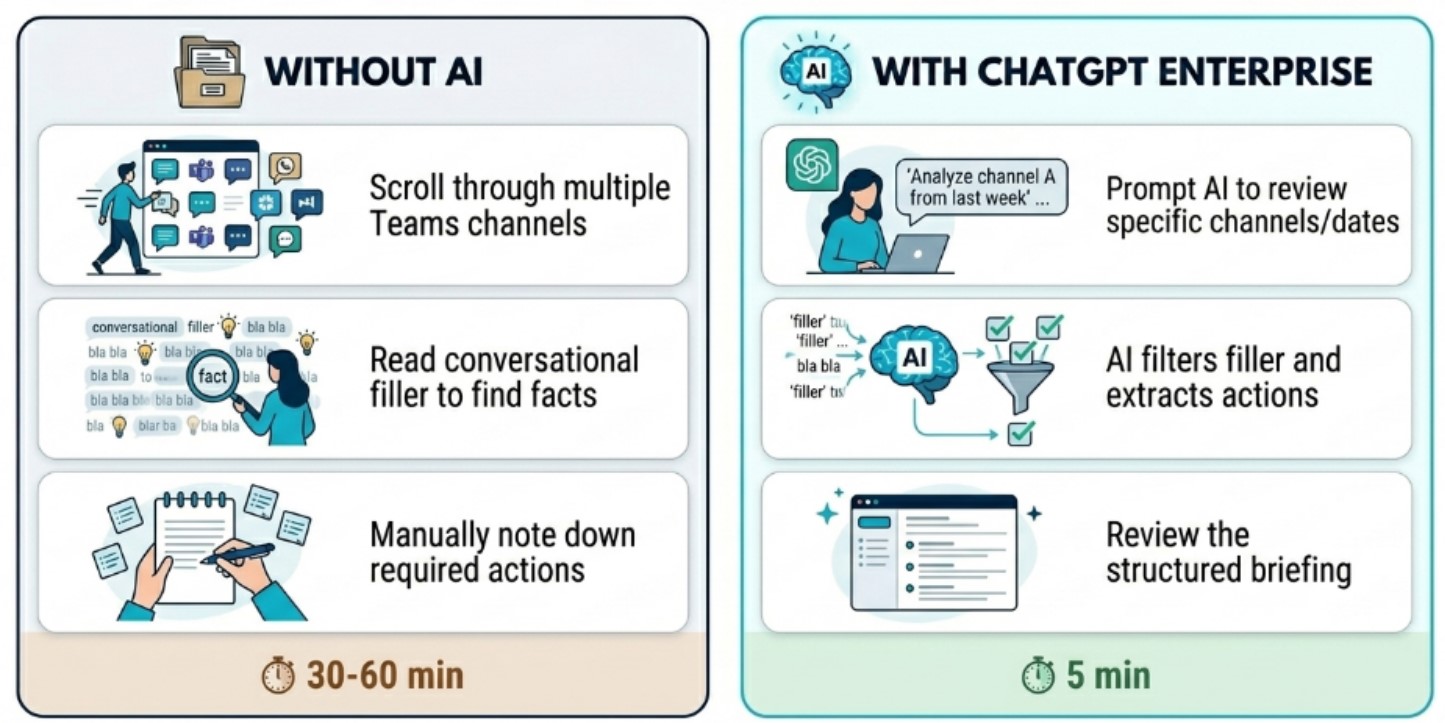
Today's exercise: Catching up on a Teams channel
Imagine you have been away for a week and need to understand what happened in a project channel before attending your next meeting.
Rather than reading every message individually, you can use ChatGPT to review the conversation history and create a structured summary.
Here's what you need for this exercise
Tools and inputs required:
🛠️ Tool | ChatGPT Enterprise (WOG) |
🔗 Feature | Microsoft Teams Connector |
📂 Your input | Connected Microsoft Teams account (read-only access) |
Step 1: Connect to Microsoft Teams
☑️Open ChatGPT Enterprise, navigate to 'Plugins' and look for 'Teams'
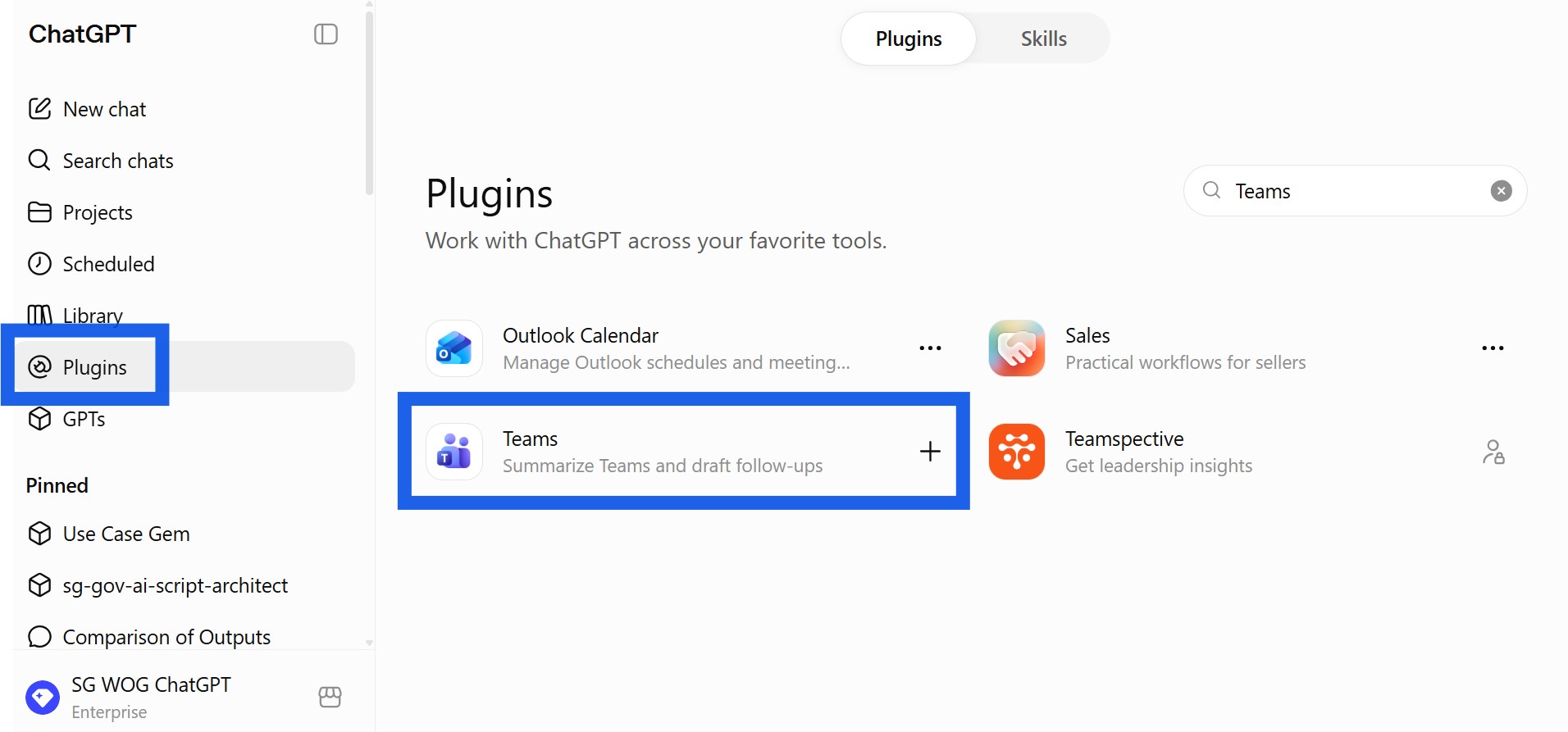
☑️Click '+' and 'Continue to Teams'
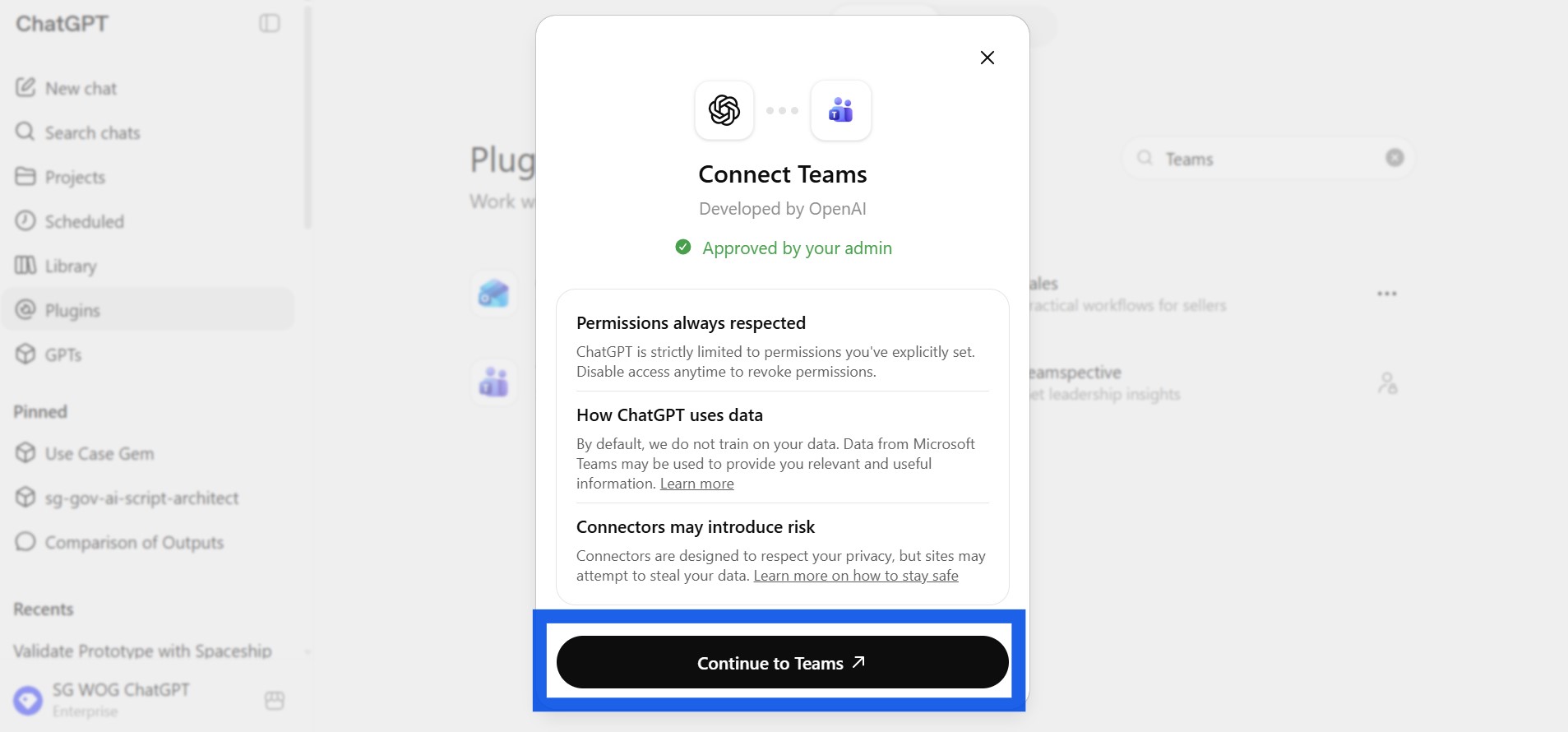
Step 2: Ask ChatGPT to search your Teams chats
☑️Start a new chat, click the '+' and then 'Teams'. This lets ChatGPT know that you want it to search your Teams as its knowledge base.
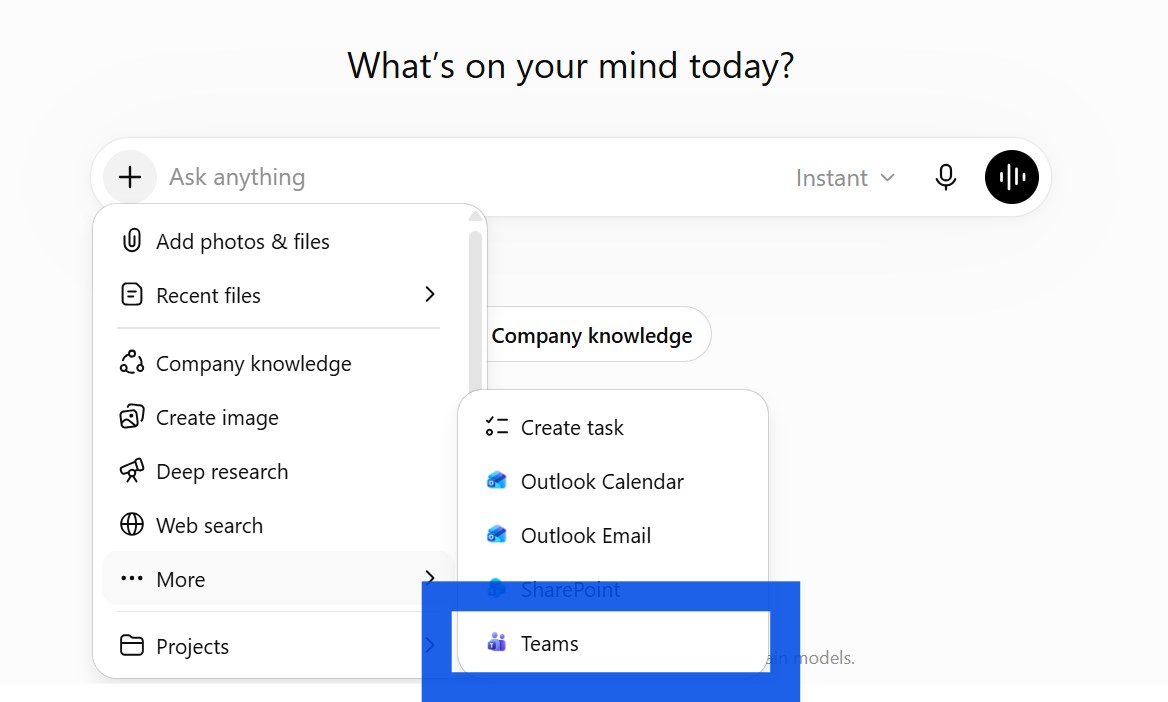
Alternatively you can type in your prompt to search your Teams chats.
☑️ Ask ChatGPT to summarise the chat history from the Teams channel and date range you want to review. You can copy the ready-to-use prompt below.
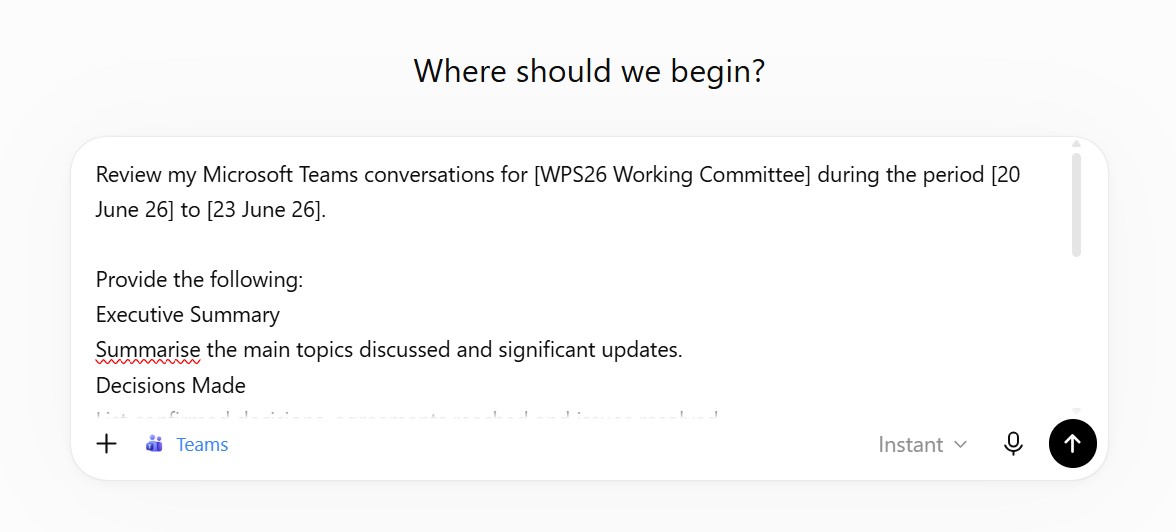
Ready-to-use prompt
Review my Microsoft Teams conversations for [Channel Name] during the period [Start Date] to [End Date].
Provide the following:
Executive Summary
Summarise the main topics discussed and significant updates.
Decisions Made
List confirmed decisions, agreements reached and issues resolved.
Action Items
Create a table showing:
Action
Owner
Status (Open / In Progress / Completed)
Outstanding Issues
List unresolved questions, risks or dependencies.
What I Need to Know
Identify the top three actions or decisions that require my attention.
Focus on decisions and actions rather than repeating individual messages.
3. Review the generated briefing
☑️ Your consolidated briefing is now ready! Read the summary and check the source Teams channel to validate any important decisions.
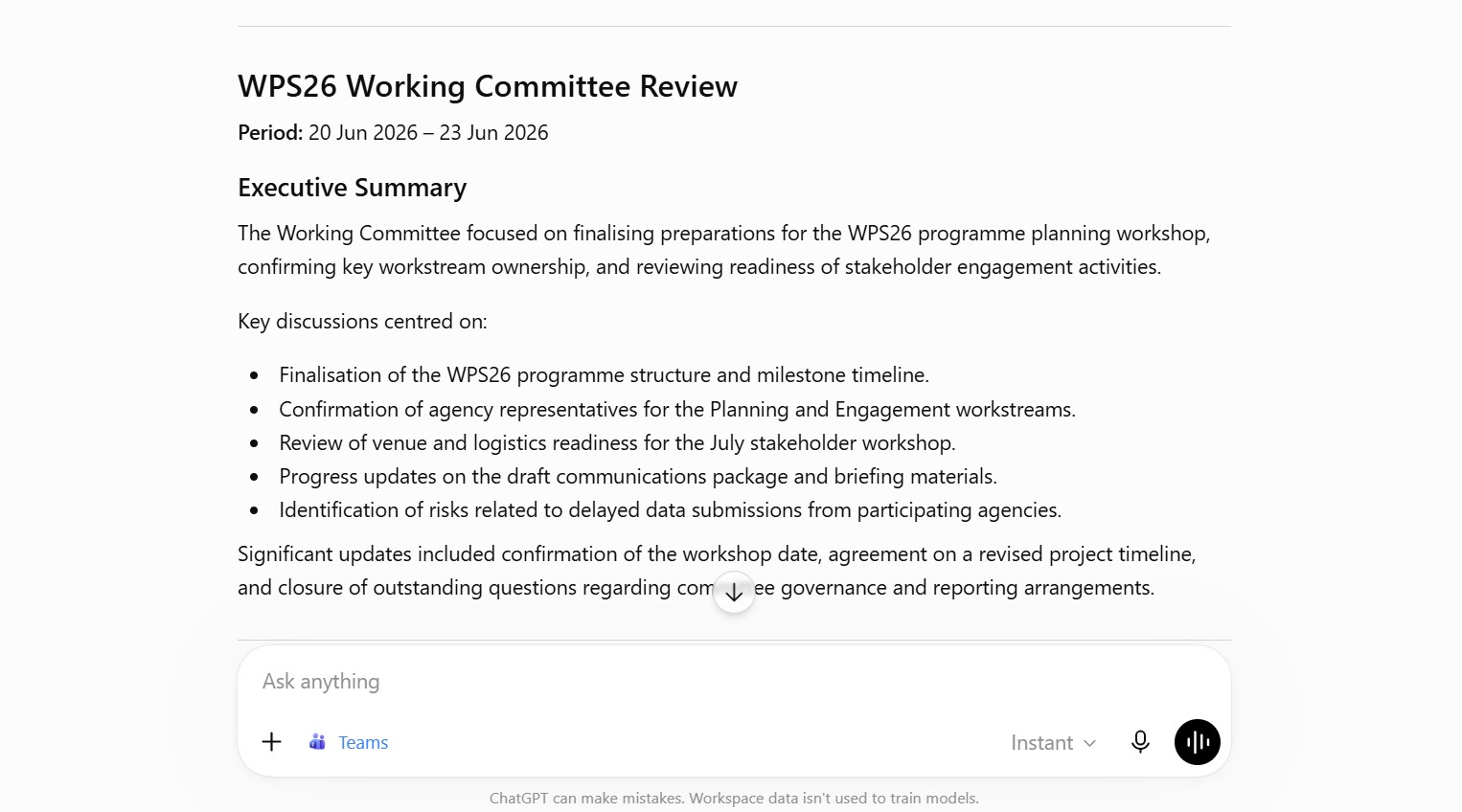
Let's review what we just did:
Every effective AI task is built around five components — together, they spell CRAFT. Let's see how we applied them in our exercise.
C | 📂 Context | Microsoft Teams conversations, channel discussions and message history |
R | 🎭Role | ChatGPT acts as a meeting and collaboration assistant |
A | ⚡Action | Reviews conversations, identifies decisions, extracts actions and summarises discussions |
F | 📋Format | Structured briefing with Executive Summary, Decisions, Actions, Outstanding Issues and Required Attention |
T | 🔍Test | Review the summary and validate important decisions against the original conversation |
Now it's your turn to try
Connect ChatGPT to Microsoft Teams and ask it to review a project channel that you have not checked recently.
For example:
"Review conversations in the Project Steering Committee channel from the last two weeks and provide a summary of decisions, actions and outstanding issues."
The Microsoft Teams connector is particularly useful when you need to catch up quickly, prepare for meetings or identify actions without reading every message individually.
📅Following the 12-Week Learning Plan?
Congratulations on reaching Week 7! This guide is part of a 12-week learning plan designed to help you build practical AI skills. You're well on your way to becoming AI fluent.

Preview the 12-Week Learning Plan
12 Week Learning Plan
Week 1 | CSDPAI Literacy Module (opens in new tab) |
Week 2 | Webinar: Introduction to AI-First |
Week 3 | Webinar: Open AI ChatGPT Foundations |
Week 4 | Webinar: Introduction to AI-First |
Week 5 | Using AI responsibly |
Week 6 | Meeting Minutes with AI |
Week 7📍 | Generate a Daily Morning Brief |
Week 8 | AI Apply 201: Domain Specific Tasks |
Week 9 | Workflow Mapping & Peer Sharing |
Week 10 | |
Week 11 | Your AI Playbook |
Week 12 | |
Week 13 | CAT Brownbag at Lorong |
⏭️Next Guide: Reviewing Submissions (with first-cut feedback)
↩️Return to: AI 201 Apply Learning Pathway