
Schedule meetings on Outlook with Copilot
4 August 2026
Learning Pathway:
AI Apply 201: Everyday Tasks
Learn how to use Copilot in Outlook to find a suitable meeting time
.png)
Today's Exercise
Meeting scheduling often means checking several calendars, comparing options, and going back and forth before a time is agreed. Copilot in Outlook helps you find a shared slot faster and set up the meeting with less manual work.
Let's schedule a meeting with Copilot in 2 simple steps
Find common timeslots
Schedule the meeting
Here's what you need for this exercise
Tools and inputs required:
🛠️ Tool | Outlook Calendar |
🔗 Feature | Copilot Chat in Outlook |
📂 Your input | Your Team's calendar information |
Step 1: Find common timeslots with Copilot
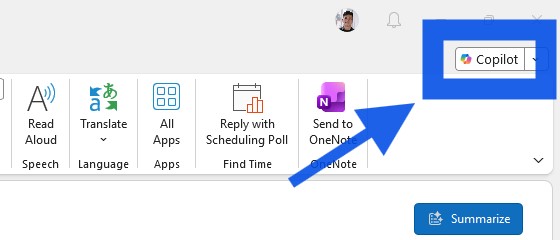
☑️ Open Copilot in Outlook
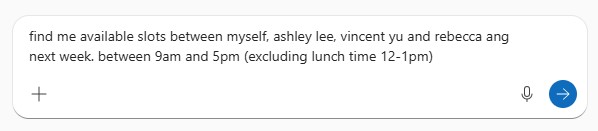
☑️ Ask Copilot to find common timeslots with your team. You can use the prompt below.
Ready-to-use prompt
Find me available slots between myself, [Colleague A], [Colleague B], [Colleague C], next week between 9am and 5pm, excluding lunch time 12-1pm.
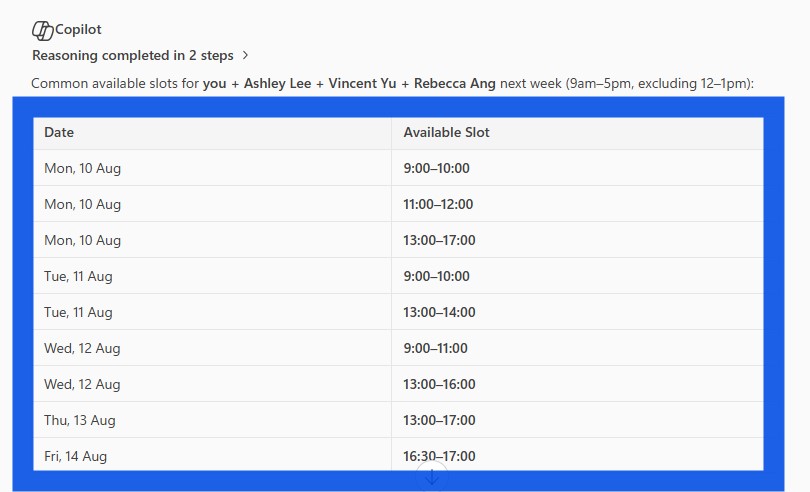
☑️ Copilot will present you with the common slots.
Step 2: Schedule the meeting with Copilot

☑️ Ask Copilot to schedule the meeting at your chosen slot. You can also specify the meeting title, and if it is a virtual Teams meeting.
Ready-to-use prompt
Schedule a 1-hour meeting for [time slot]. Title it [meeting title]. Make it a Microsoft Teams meeting.

☑️ Copilot will ask you to confirm the details. You can then click 'send invite'.
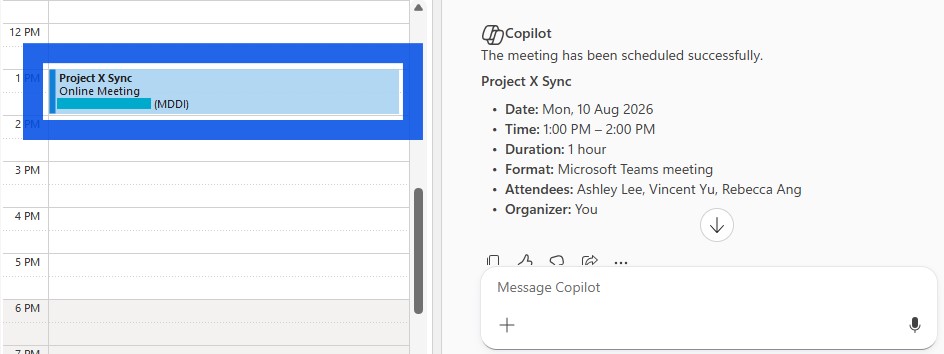
☑️ Your meeting is now scheduled!
Now it's your turn to try!
Open Copilot in Outlook and ask it to help schedule one of your own meetings. For example:
Find a 30-minute meeting slot for me and [Colleague A] sometime this week.
Find the earliest time that everyone in [Project Team] is available for a 45-minute discussion.
Copilot is particularly useful when coordinating meetings across multiple people's calendars.