
Create PowerPoint slides with Copilot
28 July 2026
Learning Pathway:
AI Apply 201: Everyday Tasks
Use Copilot to search across your Microsoft 365 content and create a presentation from your existing work.
.png)
Today's Exercise
Imagine your manager has asked you to prepare a project update presentation for an upcoming meeting. You can use Copilot in PowerPoint to search your Microsoft 365 content and generate a first draft of the presentation.
Let's create a slide deck in 3 simple steps:
Draft a presentation outline
Generate the presentation
Review & edit
Here's what you need for this exercise
Tools and inputs required:
🛠️ Tool | PowerPoint |
🔗 Feature | Copilot Chat in PowerPoint |
📂 Your input | Your Microsoft 365 content |
Step 1: Draft a presentation outline
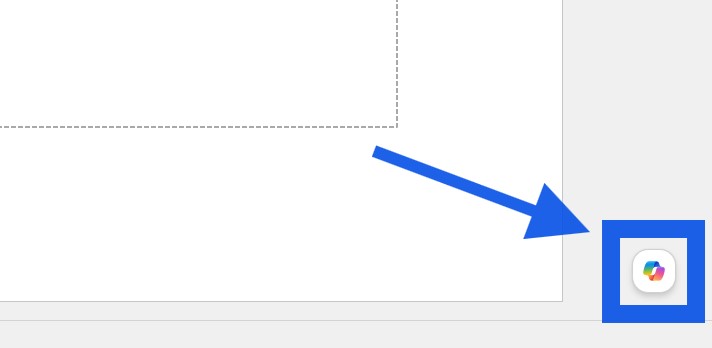
☑️ Open PowerPoint and click the Copilot icon in the bottom-right corner.
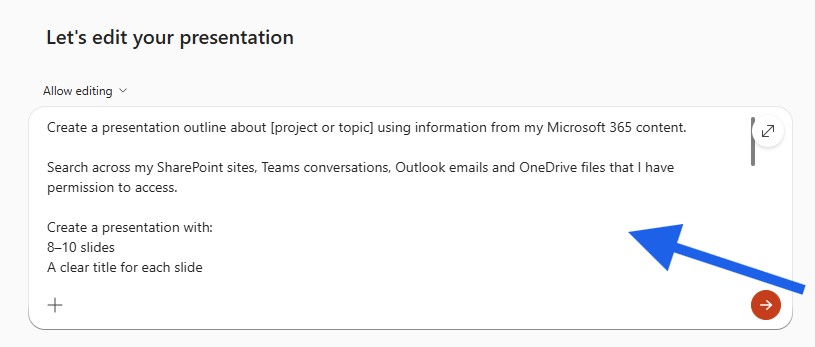
☑️ Ask Copilot to search your Microsoft 365 content for [your topic] and draft a presentation outline. You can use the ready-made prompt below.
Ready-to-use prompt
Create a presentation outline about [project or topic] using information from my Microsoft 365 content.
Search across my SharePoint sites, Teams conversations, Outlook emails and OneDrive files that I have permission to access.
Create a presentation with:
8–10 slides
A clear title for each slide
3–5 concise bullet points per slide
Key milestones, decisions and outcomes
Relevant statistics where available
Risks and next steps
Present the information in a logical order suitable for a management update.
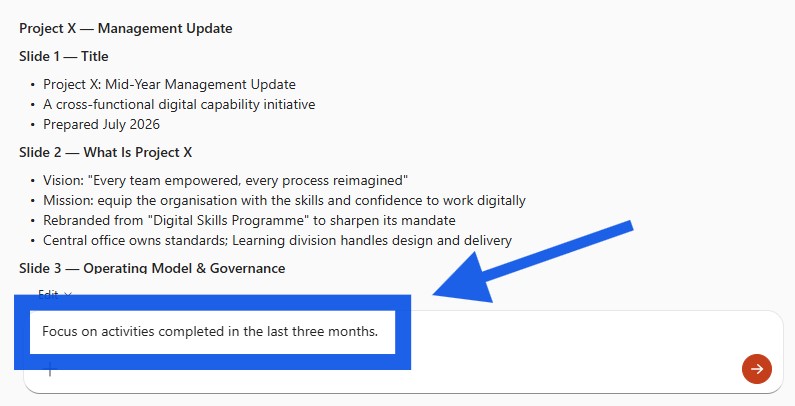
☑️ Review the outline. You can continue refining the outline by prompting further e.g. "Focus on activities completed in the last three months."
Step 2: Generate the presentation
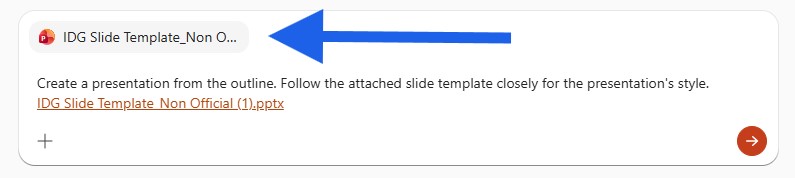
☑️ Ask Copilot to create the presentation from the outline. If you have a preferred template, upload a past reference to guide the design.
Step 3: Review & Edit
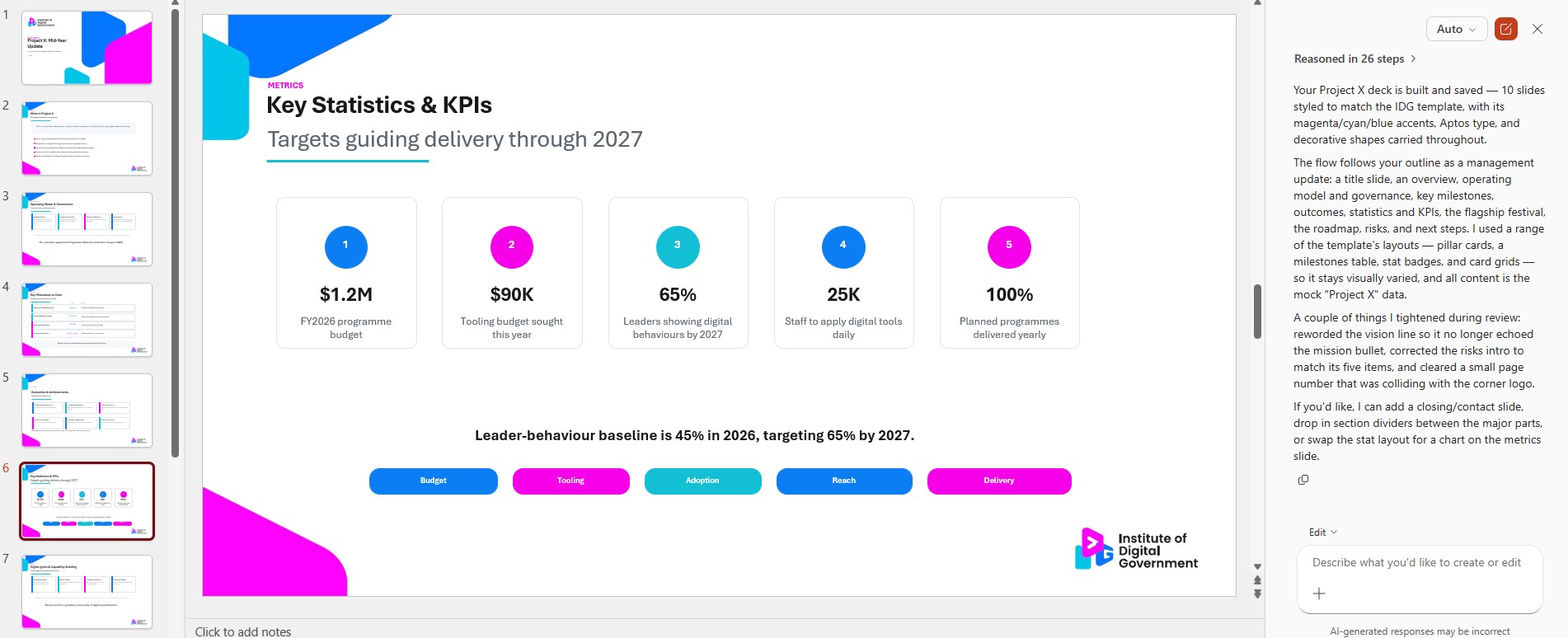
☑️ Review the presentation and continue refining with Copilot if required. Some manual editing will probably be required to get it just right.
Now it's your turn to try!
Open PowerPoint and ask Copilot to create a presentation using information from your Microsoft 365 content. Try prompts such as:
"From my M365 Content...
...create a quarterly project update for Project Atlas."
...summarise the work completed by the Digital Services team this year."
...prepare a steering committee presentation for the AI Pilot Programme."
You'll often spend less time gathering information and more time refining the presentation for your audience.
📚Further Learning: Copilot in Powerpoint course
Discover how to use Copilot to generate, refine, and enhance presentations, helping you spend less time building slides and more time telling your story.
Start the e-Learning: Copilot in PowerPoint: From Prompt to Powerpoint ↗(opens in new tab) (opens in new tab)
Linkedin Login required