
Getting started with Copilot
3 August 2026
Learning Pathway:
AI Apply 201: Everyday Tasks
If you're new to Copilot, you don't need to learn everything at once. Here's 5 features to get you started.
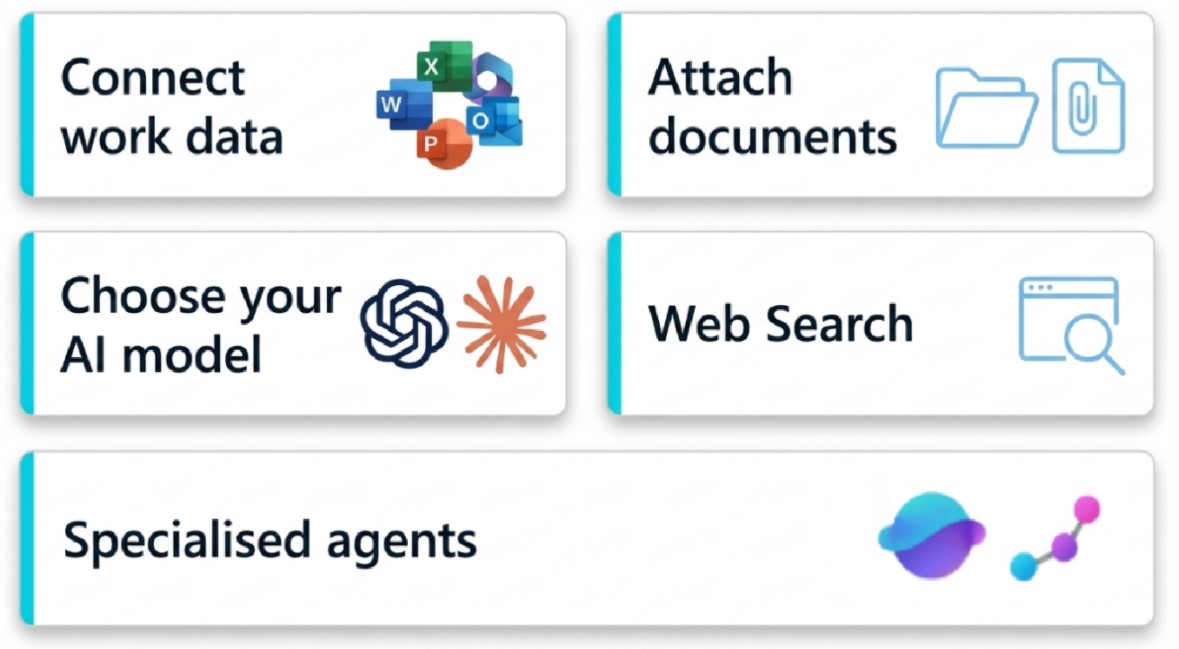
1. Connect your work data in Copilot
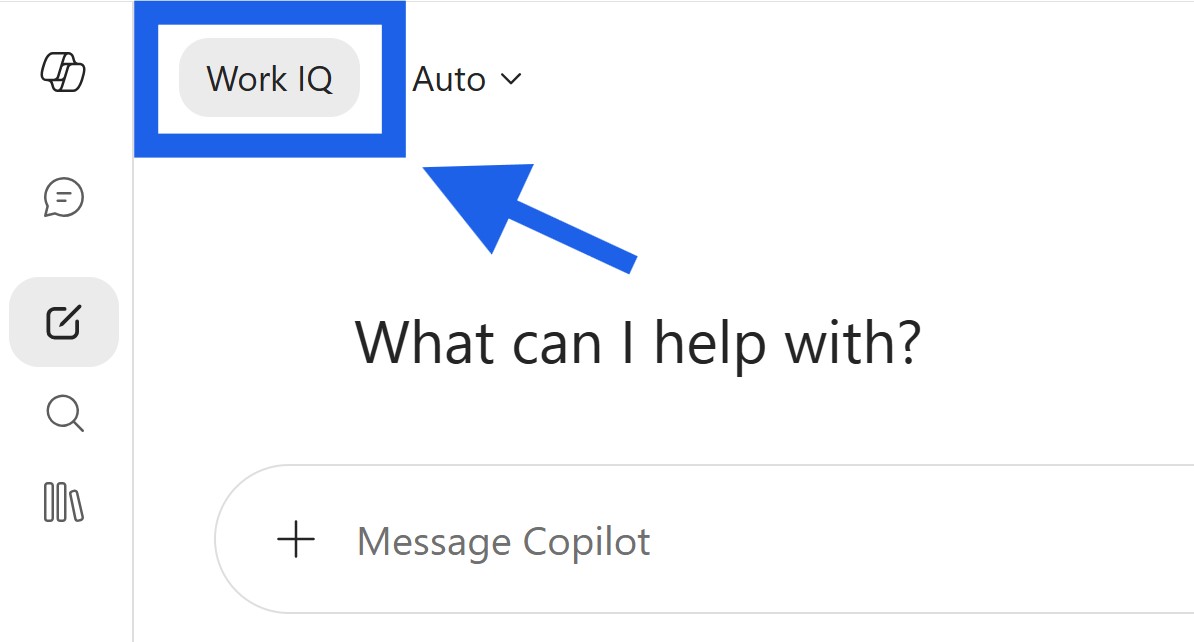
☑️ With 'WorkIQ', Copilot uses your Microsoft 365 work context (emails, chats, meetings, people, files, etc.) when answering your prompt. Here are some prompts to try:
What meetings do I have for this week?
Find email from [person] about [topic].
Keep me updated on [project].
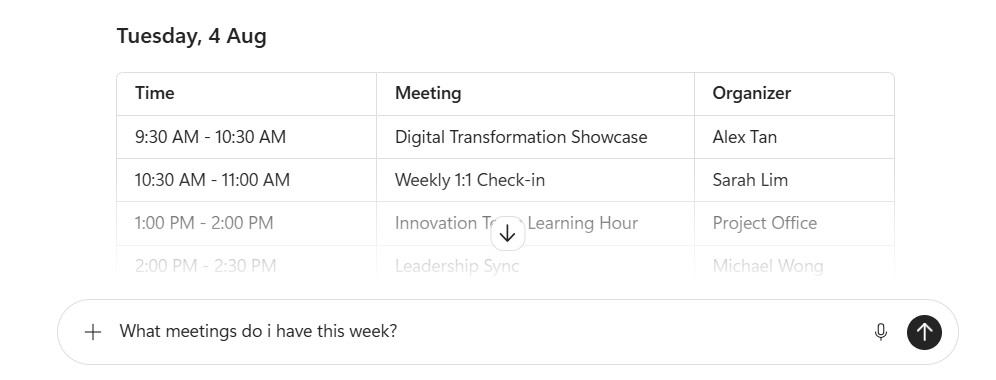
☑️ For example, Copilot can show you upcoming meetings, based on your Outlook Calendar.
2. Attach documents to analyse
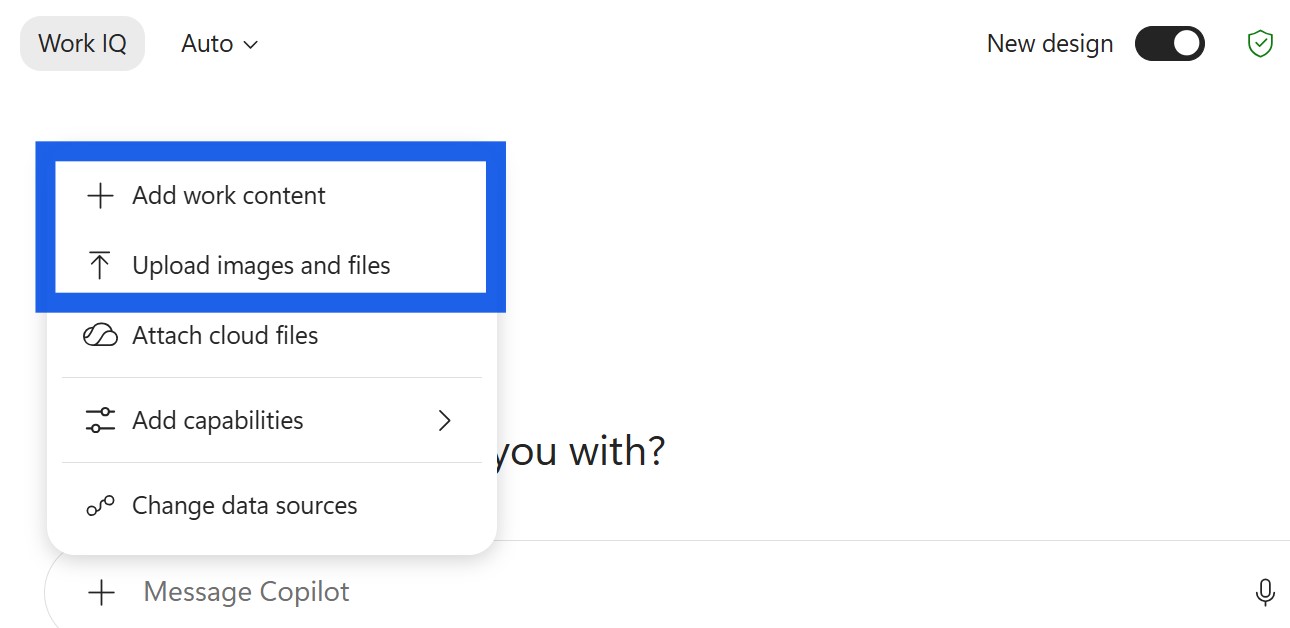
☑️ Add files directly into Copilot using the '+' menu. This is useful when you want Copilot to work directly from a specific document, rather than searching broadly. Example prompts include:
Summarise this document in five points.
Compare these two reports and highlight the differences.
Extract the key risks and open issues from these notes.
3. Choose the model that fits the task
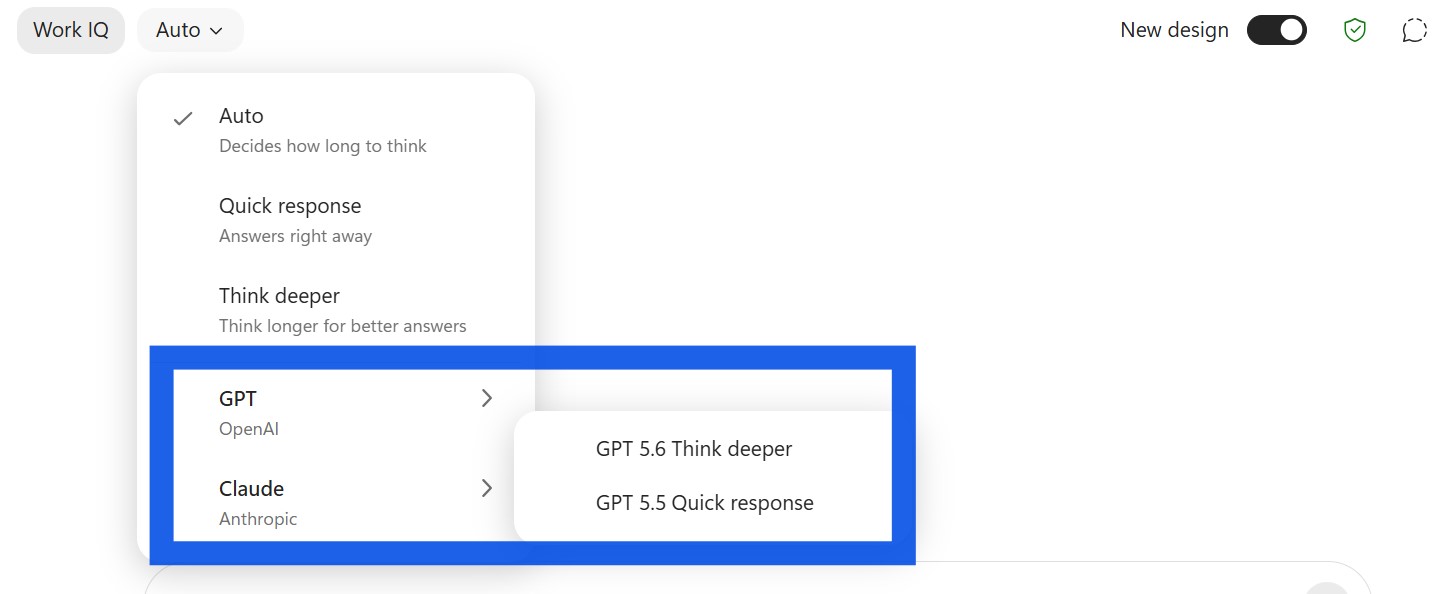
☑️ Copilot lets you choose between 'OpenAI GPT' and 'Claude Opus'. It also shows different response modes such as quicker responses or deeper reasoning.
Use a quicker response for simple questions.
Use deeper reasoning for more complex work.
Use automatic selection when you are not sure which model is best.
4. Search the web
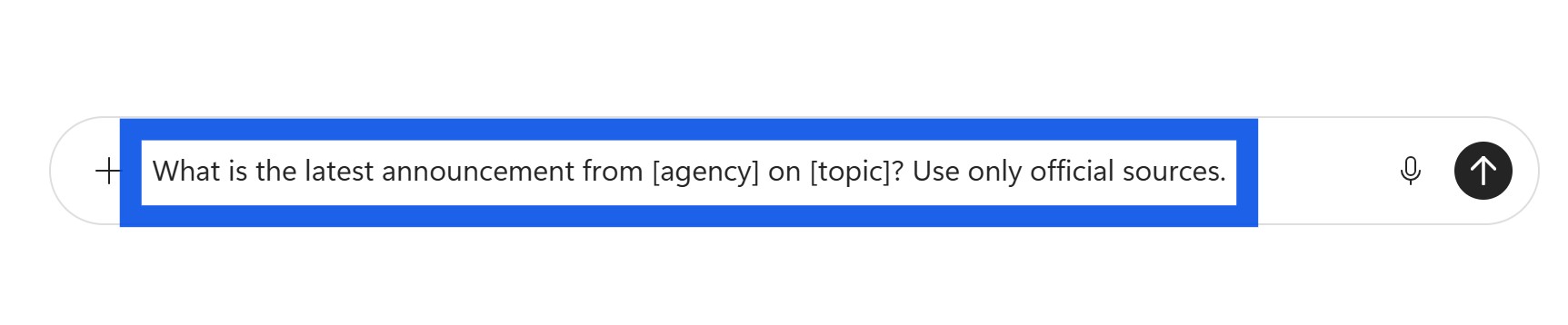
☑️ Copilot is able to use information from the internet to generate answers, useful when you need up-to-date information. Example prompts include:
What is the latest announcement from [agency] on [topic]?
Summarise recent developments on [topic] from web sources.
What are the latest guidelines on [subject] according to web sources?
5. Use specialised agents for deeper work
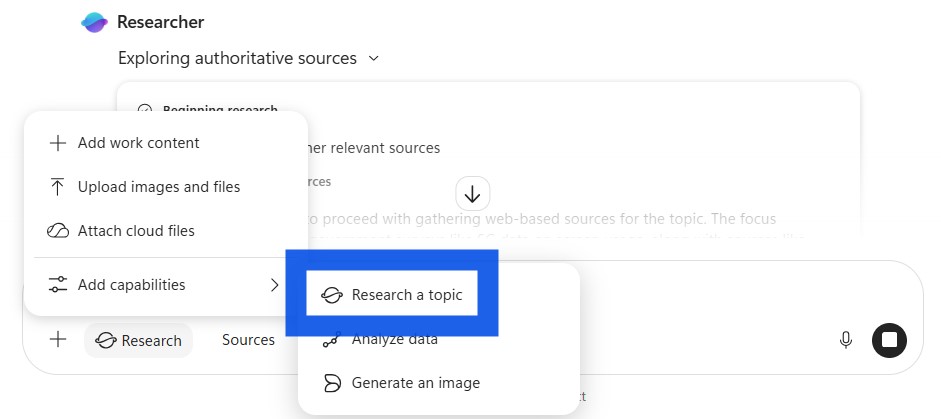
☑️ Use 'Researcher' from the '+' menu to perform a multi-step research process, pulling together information from both your work data and web sources.
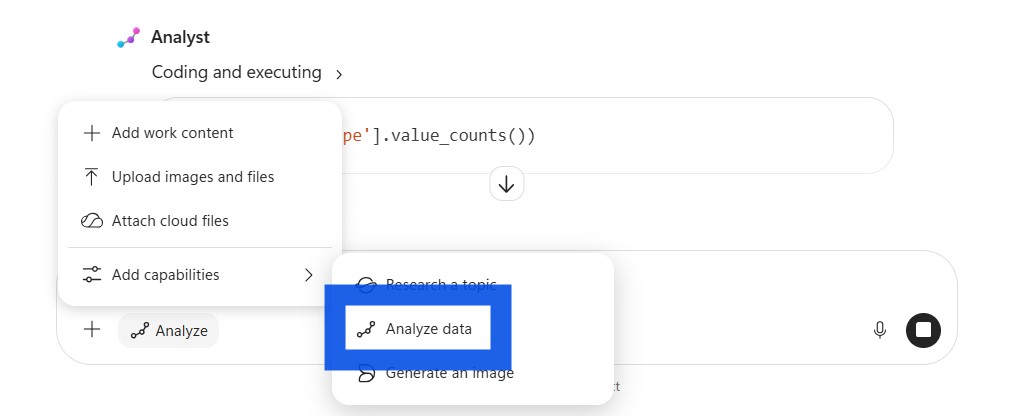
☑️ Use 'Analyst' from the '+' menu for structured data work. It can perform complex analysis and generate visualisations from your data.
Now it's your turn to try!
Open Microsoft 365 Copilot and try one of the example prompts in this guide. Experiment with different features depending on your task:
Use WorkIQ to search across your Microsoft 365 work content
Attach documents when you want Copilot to focus on a specific file.
Choose a model that matches the level of reasoning you need.
Search the web for current information.
Use Researcher and Analyst when your task requires deeper research or data analysis.
The best way to learn Copilot is to use it in your everyday work. Start with a simple task, review the response, and refine your prompt until you get the result you need.