
Draft documents in Word with Copilot
30 July 2026
Learning Pathway:
AI Apply 201: Everyday Tasks
Use Copilot in Word to create first drafts using relevant content from Microsoft 365.
.png)
Today's Exercise
Creating documents from scratch can be time-consuming. Copilot in Word helps you use relevant Microsoft 365 content to quickly generate a structured first draft.
Imagine you’ve exchanged several emails with another agency and scheduled a meeting to discuss next steps.
Use Copilot in Word to generate a structured discussion plan in 2 simple steps:
Draft the document
Refine & edit
Here's what you need for this exercise
Tools and inputs required:
🛠️ Tool | Word |
🔗 Feature | Copilot Chat in Word |
📂 Your input | Your M365 content |
Step 1: Draft the Document

☑️ Open a new Word document, and start Copilot in the bottom right.
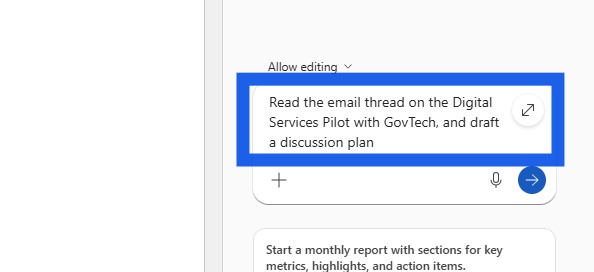
☑️ Ask Copilot to find the relevant email and draft a discussion plan.
E.g. "Read the email thread on the Digital Services Pilot with GovTech, and draft a discussion plan".
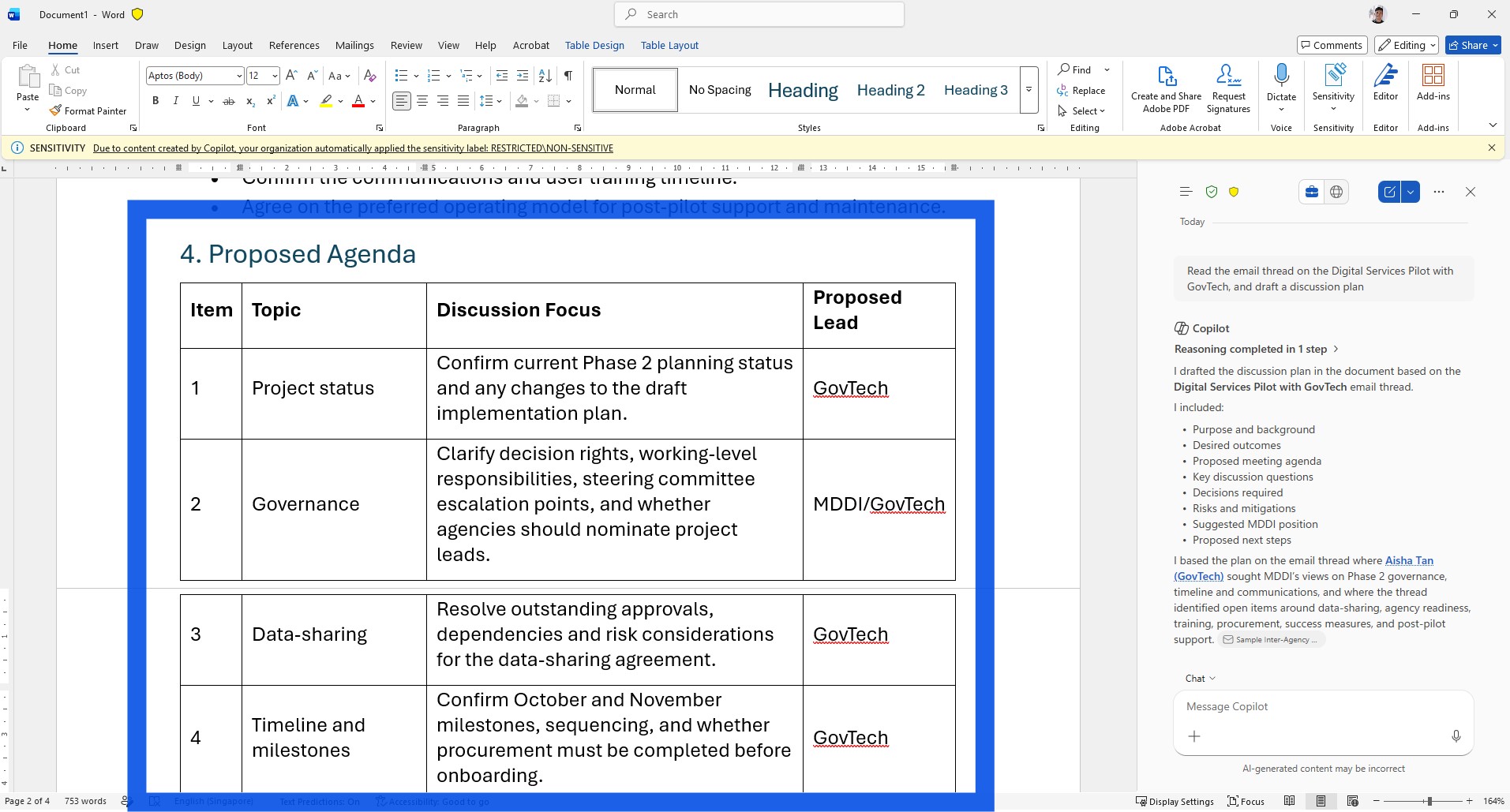
☑️ Copilot will generate the draft discussion plan based on the email.
Step 2: Refine & Edit
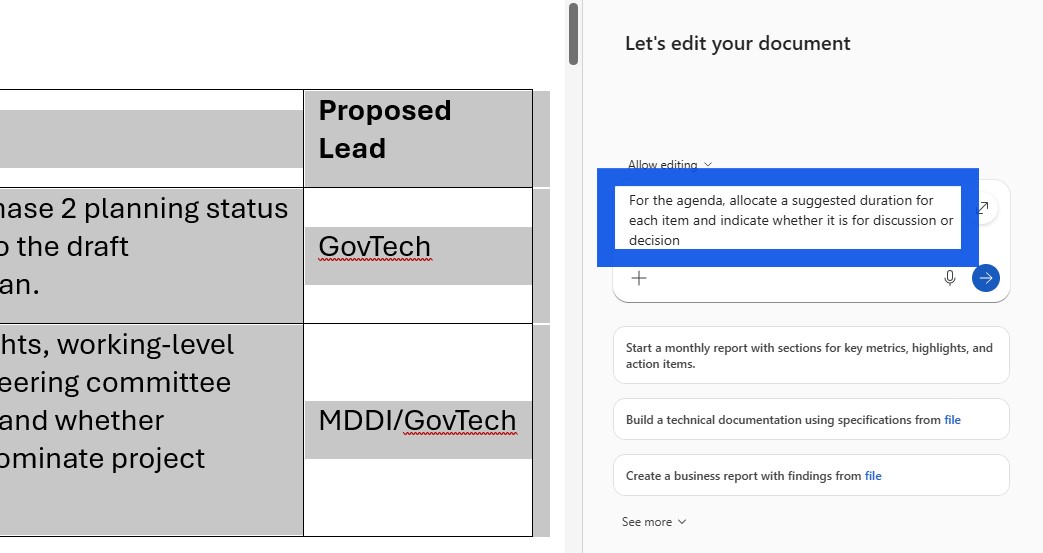
☑️ You can highlight a particular section, and ask Copilot to make refinements.
E.g. "For the agenda, allocate a suggested duration for each item and indicate whether it is for discussion or decision."
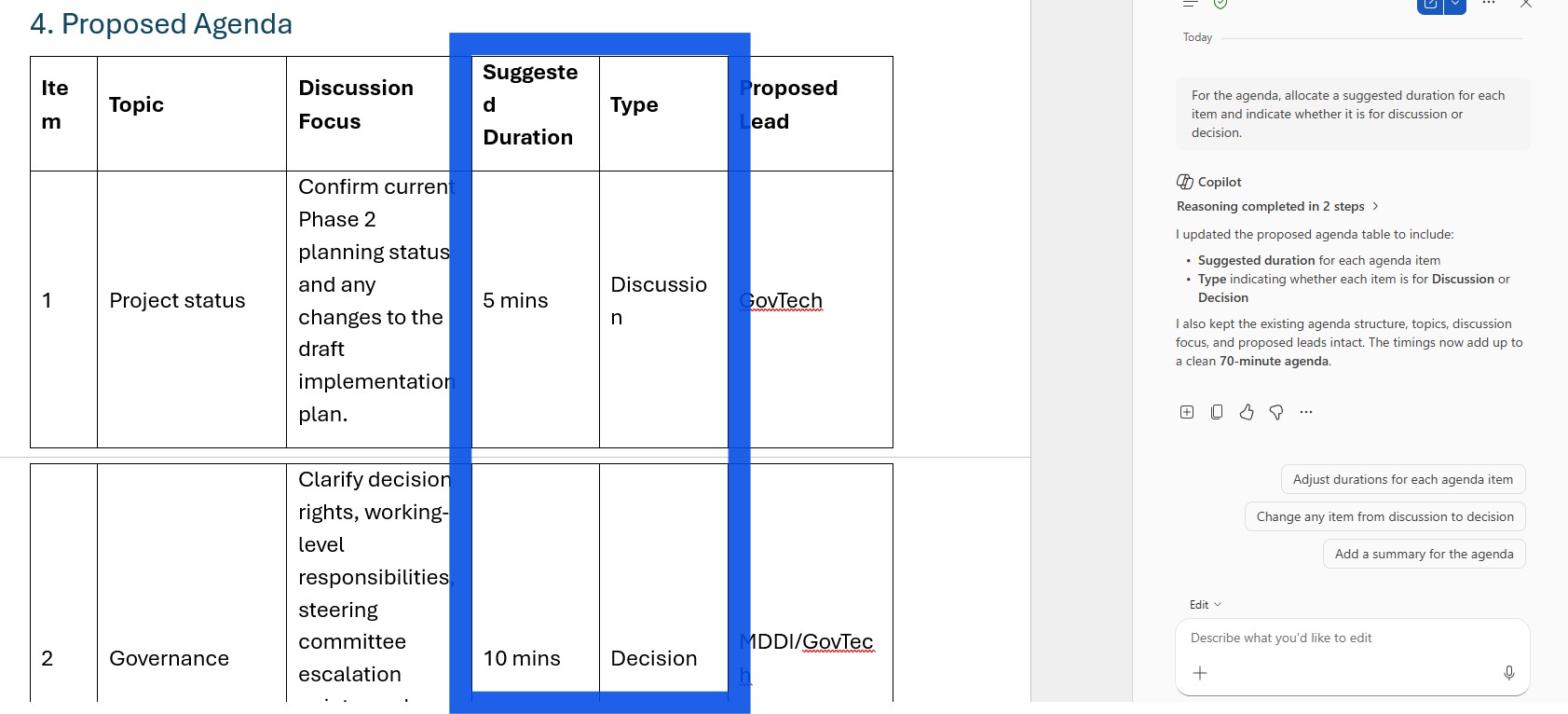
☑️ Review the refinements, and continue to edit manually if required.
Now it's your turn to try!
Open a document in Microsoft Word and ask Copilot to create a first draft using the information available in your Microsoft 365 content.
For example:
Draft a project status report for [project x] using the latest meeting notes and emails.
Create meeting notes based on the Microsoft Teams transcription from [meeting y]
The best way to learn is to try, test different prompts, and see what works best for your Word tasks.