
Draft documents in Word with Copilot
30 July 2026
AI Tool
Copilot
Use Copilot in Word to create first drafts using relevant content from Microsoft 365.
.png)
Today's Exercise
Creating documents from scratch can be time-consuming. Copilot in Word helps you use relevant Microsoft 365 content to quickly generate a structured first draft.
Imagine you’ve exchanged several emails with another agency and scheduled a meeting to discuss next steps.
Use Copilot in Word to generate a structured discussion plan in 2 simple steps:
Draft the document
Refine & edit
Here's what you need for this exercise
Tools and inputs required:
🛠️ Tool | Word |
🔗 Feature | Copilot Chat in Word |
📂 Your input | Your M365 content |
Step 1: Draft the Document

☑️ Open a new Word document, and start Copilot in the bottom right.
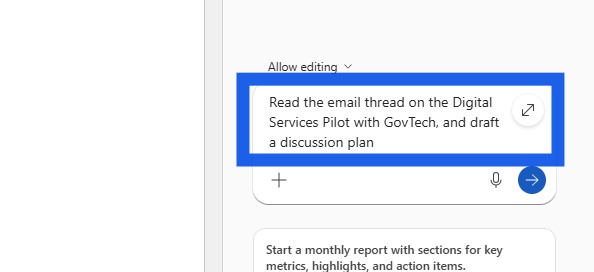
☑️ Ask Copilot to find the relevant email and draft a discussion plan.
E.g. "Read the email thread on the Digital Services Pilot with GovTech, and draft a discussion plan".
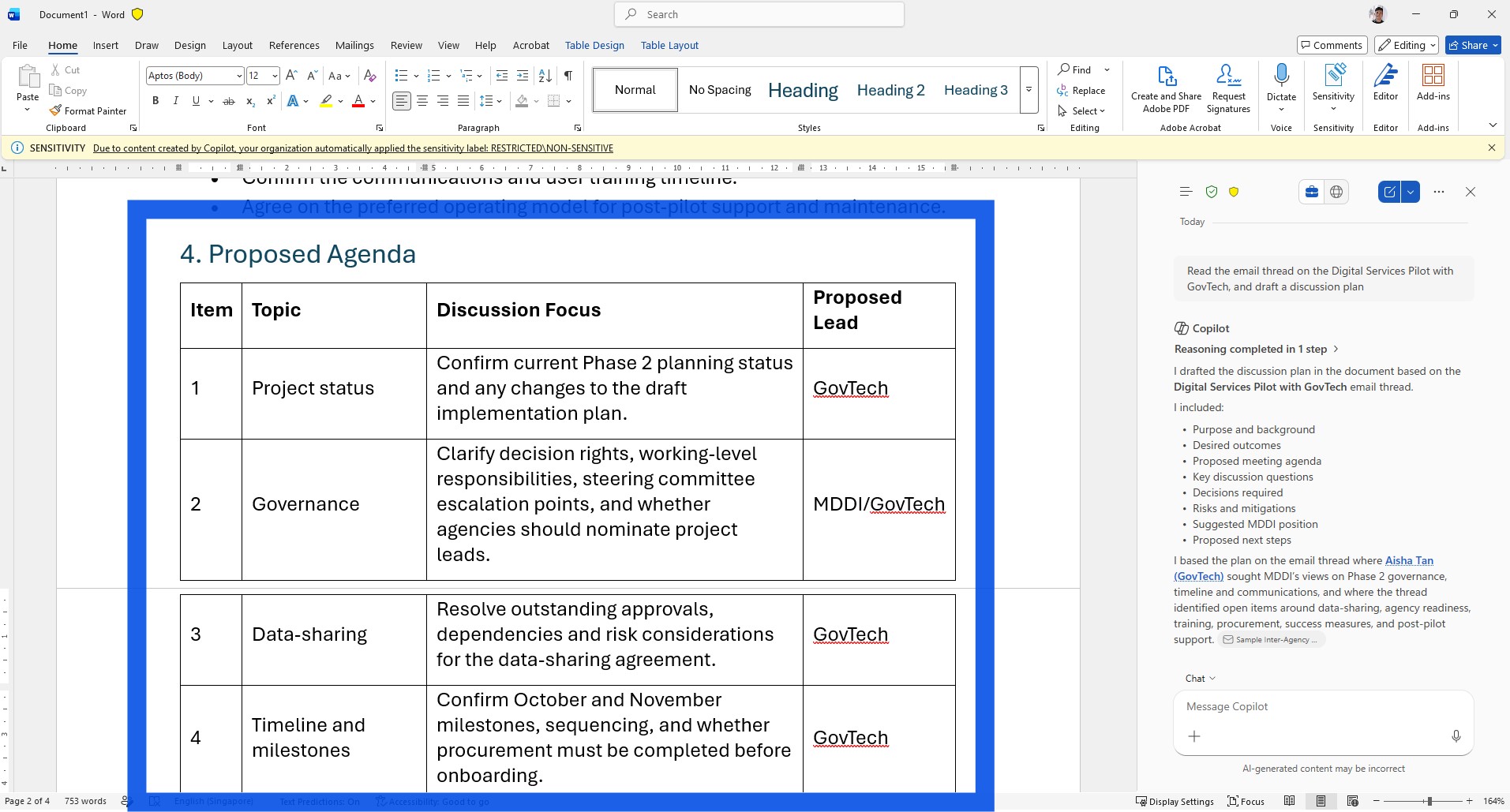
☑️ Copilot will generate the draft discussion plan based on the email.
Step 2: Refine & Edit
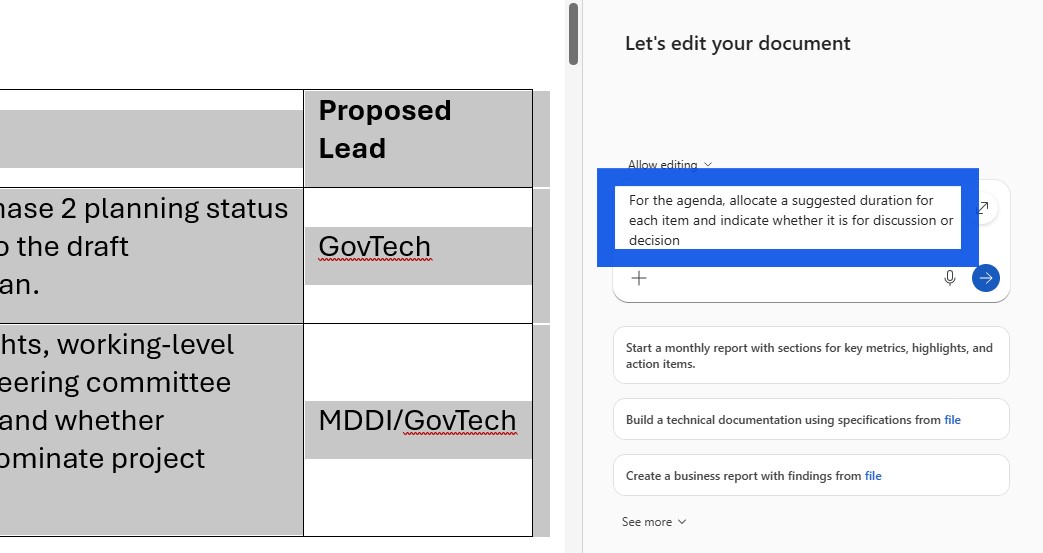
☑️ You can highlight a particular section, and ask Copilot to make refinements.
E.g. "For the agenda, allocate a suggested duration for each item and indicate whether it is for discussion or decision."
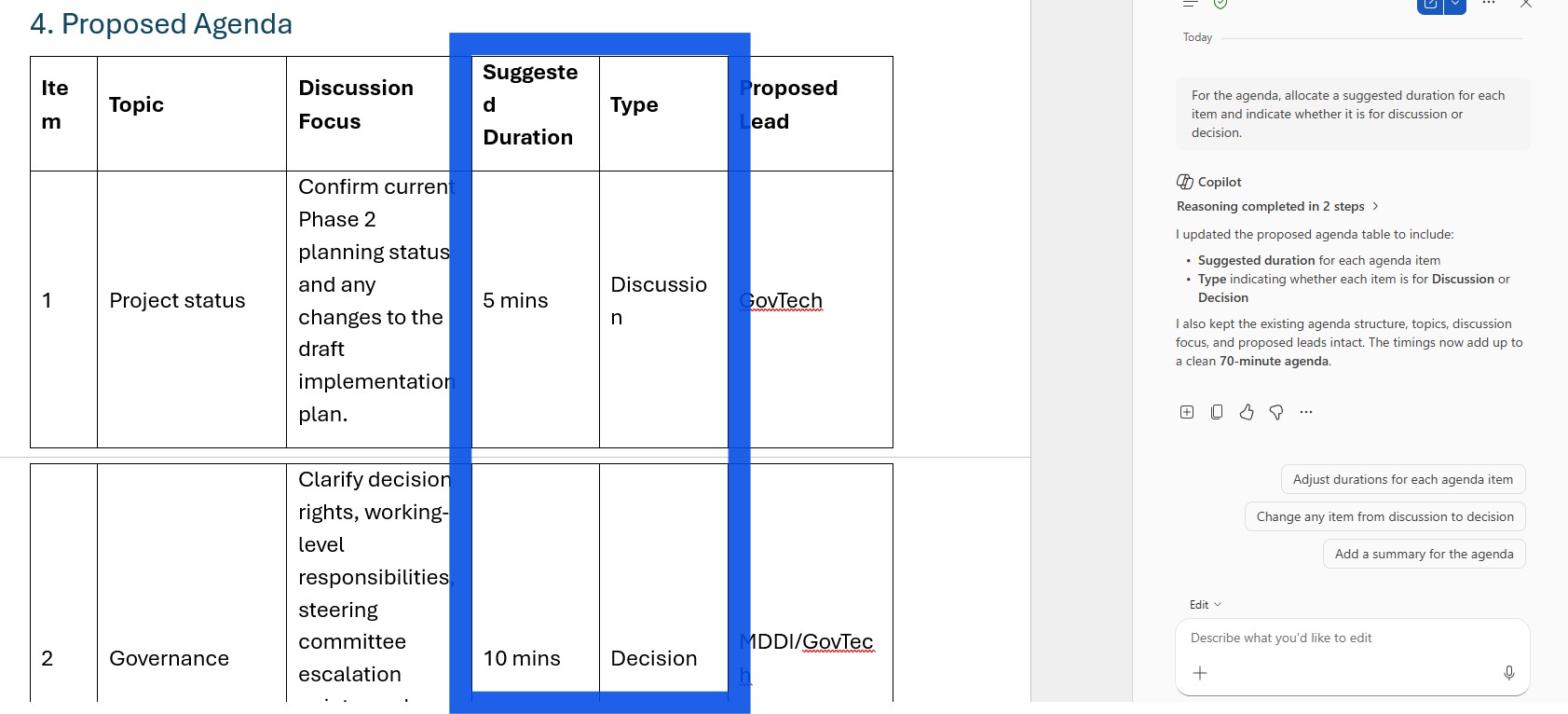
☑️ Review the refinements, and continue to edit manually if required.
Now it's your turn to try!
Open a document in Microsoft Word and ask Copilot to create a first draft using the information available in your Microsoft 365 content.
For example:
Draft a project status report for [project x] using the latest meeting notes and emails.
Create meeting notes based on the Microsoft Teams transcription from [meeting y]
The best way to learn is to try, test different prompts, and see what works best for your Word tasks.