
Deploy an app with Rabbit Deploy
Learning Pathway:
AI 301 Build
11 July 2026
Learn how to deploy vibe coded apps using Rabbit Deploy in just a few simple steps.

Today's Exercise
Rabbit Deploy gives public officers a way to host vibe coded apps on a .gov.sg domain, with features such as SSO login, audit logs and continuous security scanning built in.
Let's deploy our vibe coded app in 3 simple steps.
Download your app's code
Create a new product
'Deploy as POC'
Step 1: Download your app's code
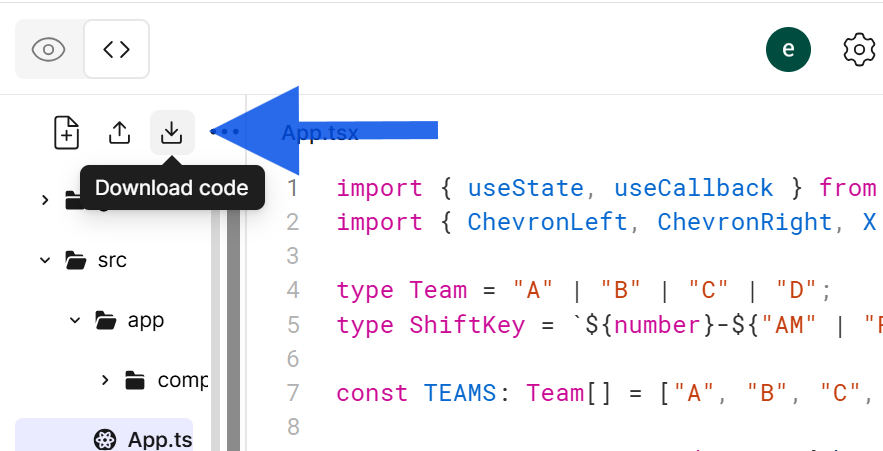
☑️ Go to your vibe coded app, and download the code. You can usually find this button by going to 'preview code', and then 'download code'.
2. Create a new product
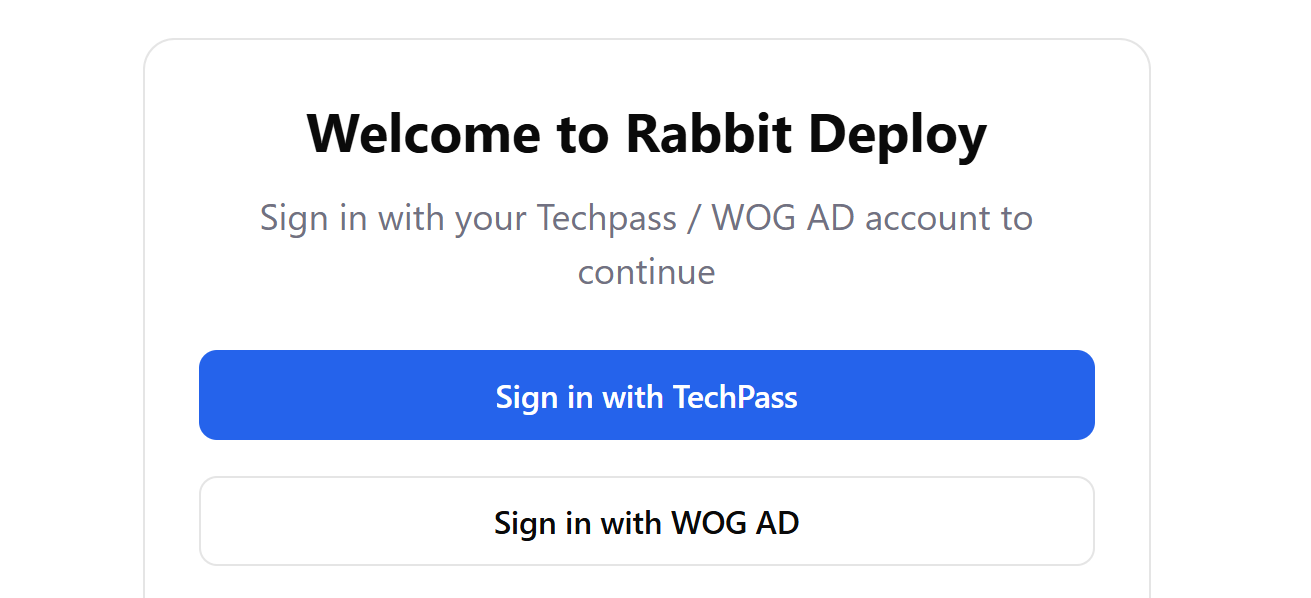
☑️ Go to Rabbit Deploy (opens in new tab) and login with WOG AD.
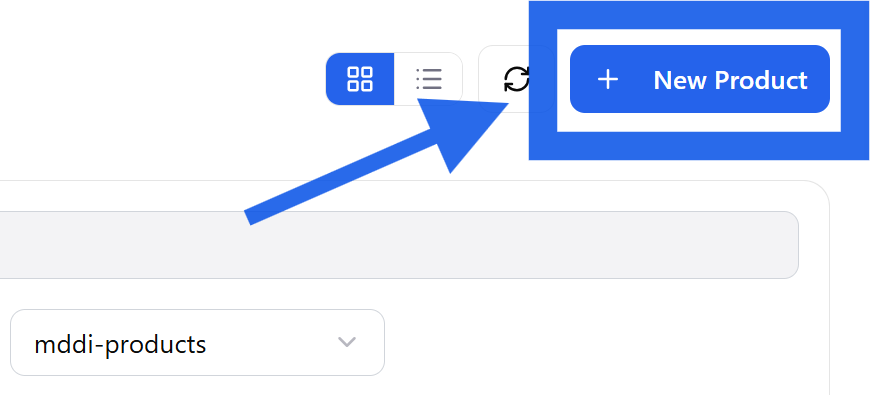
☑️ Click 'New Product'.
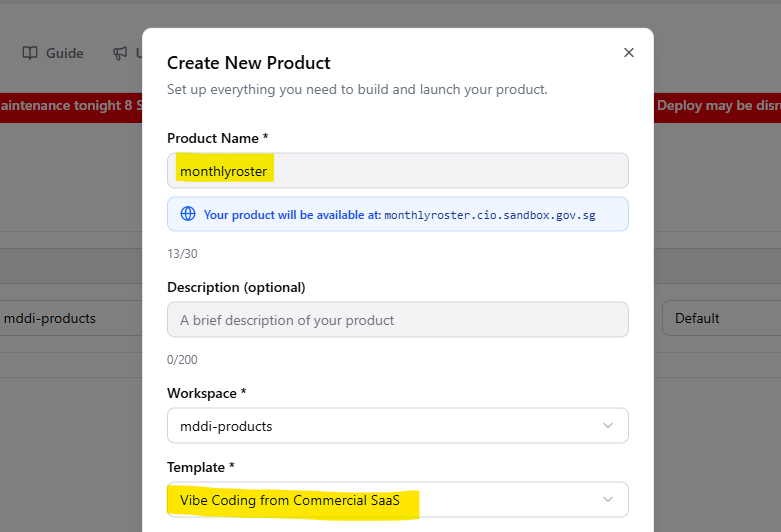
☑️ Fill in your product name, and choose 'Vibe Coding from Commercial SaaS' under template.
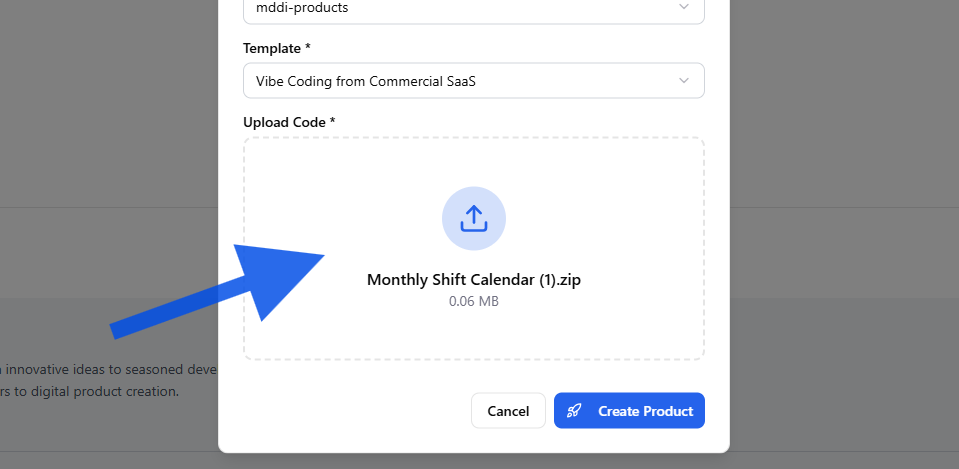
☑️ Upload the code you downloaded, and click 'Create Product'.
3. Deploy as POC
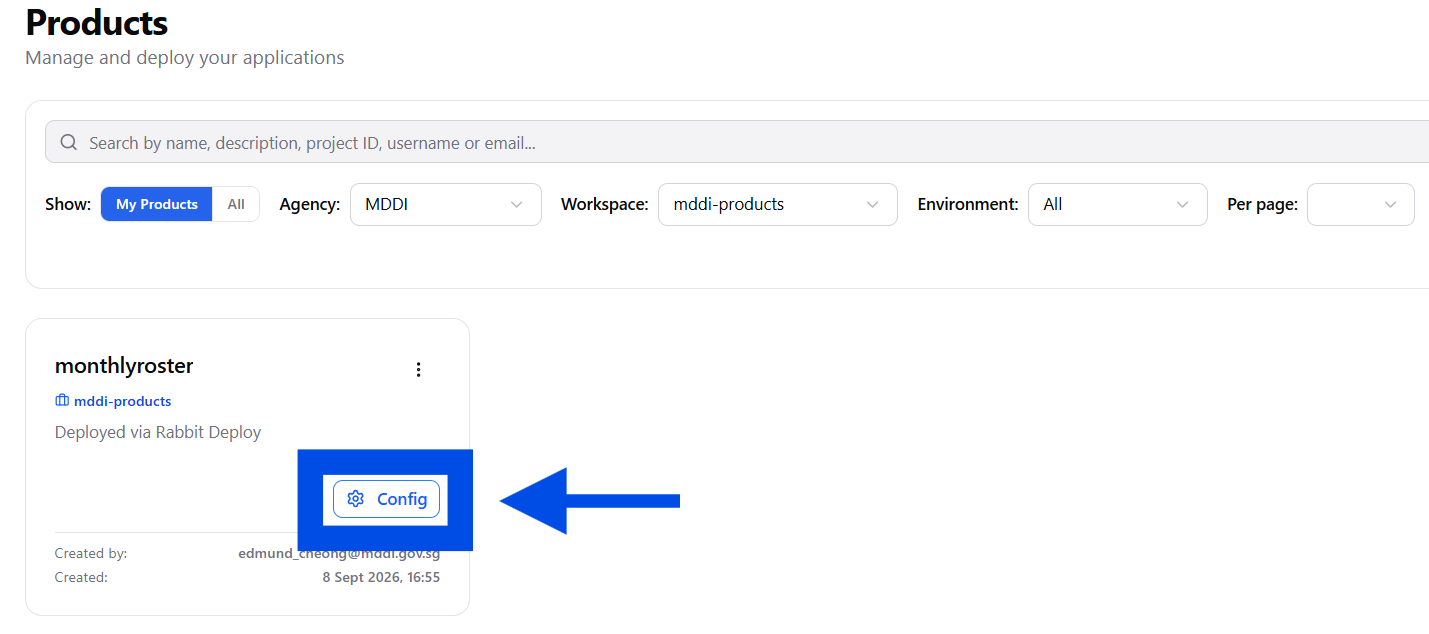
☑️ Your new product will be in your dashboard. Click the 'Config' button.
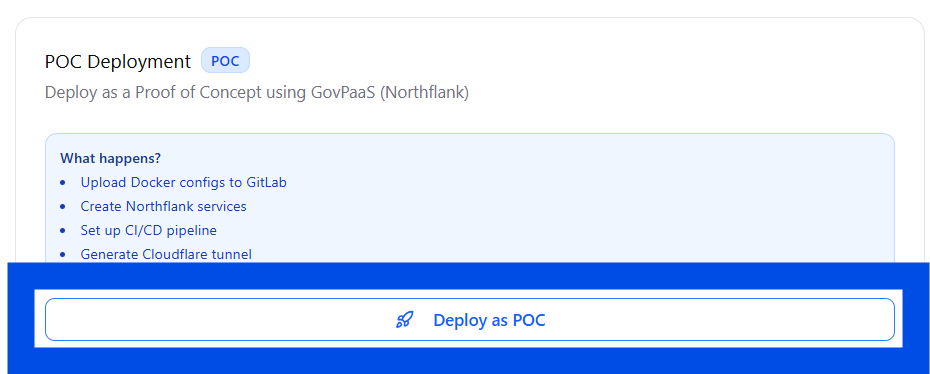
☑️ Click 'Deploy as POC'
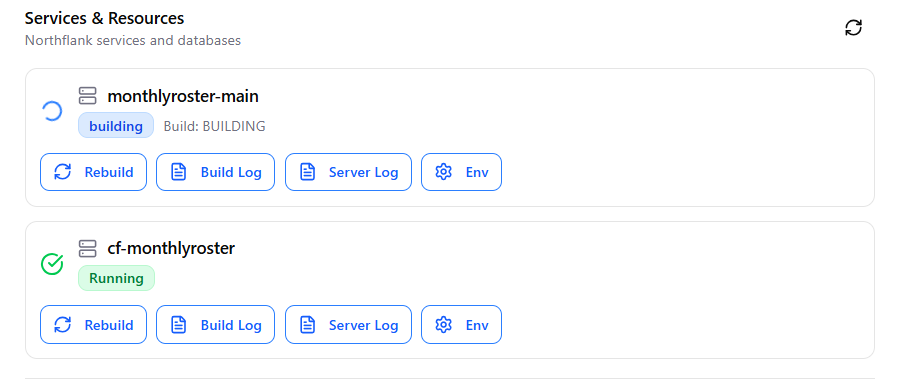
☑️ The deployment process will take about 1 - 3 mins.
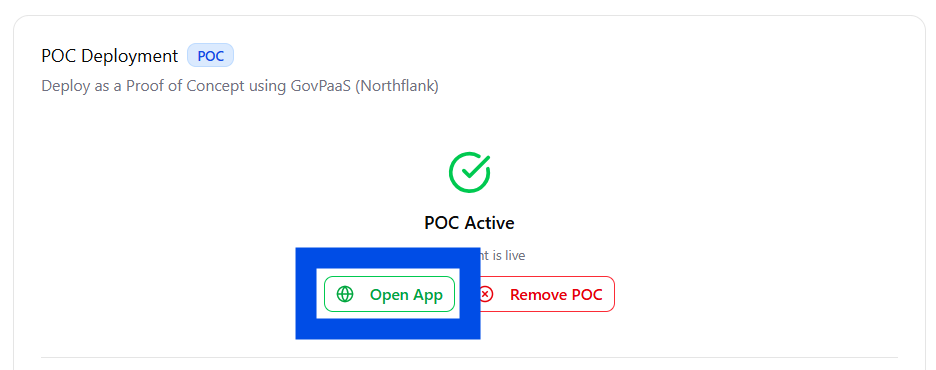
☑️ When the deployment is complete, click 'Open App'.
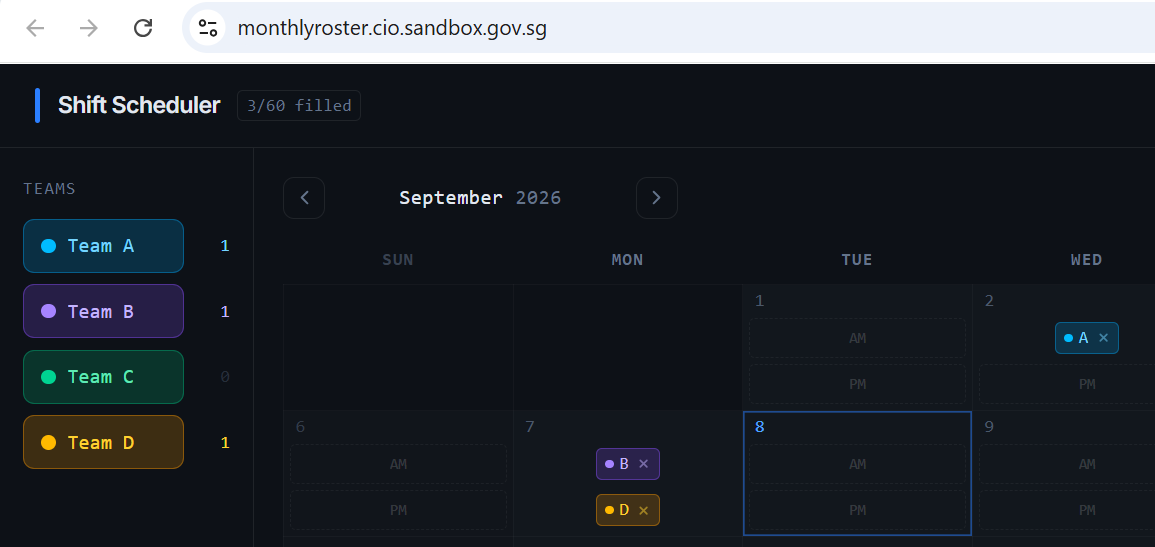
☑️ Your app is now live! Share the URL with your colleagues and users. The app can only be from government-issued laptops.
Vibe code on Rabbit Deploy
You can also vibe code directly on Rabbit Deploy. Let's learn how to do so in 2 simple steps:
Get your PlatformAI API key
Vibe code in Viber Studio
Step 1: Get your PlatformAI API key
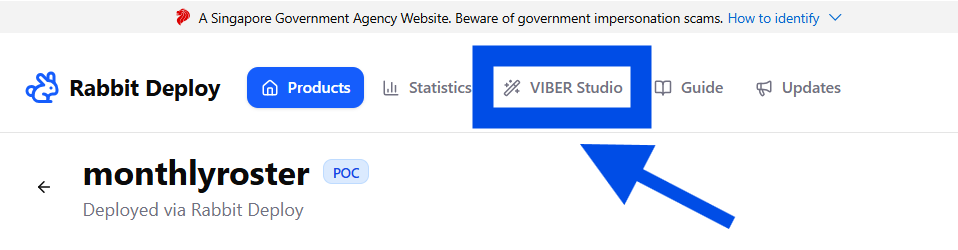
☑️ Go to 'Viber Studio' on the Rabbit Deploy website.
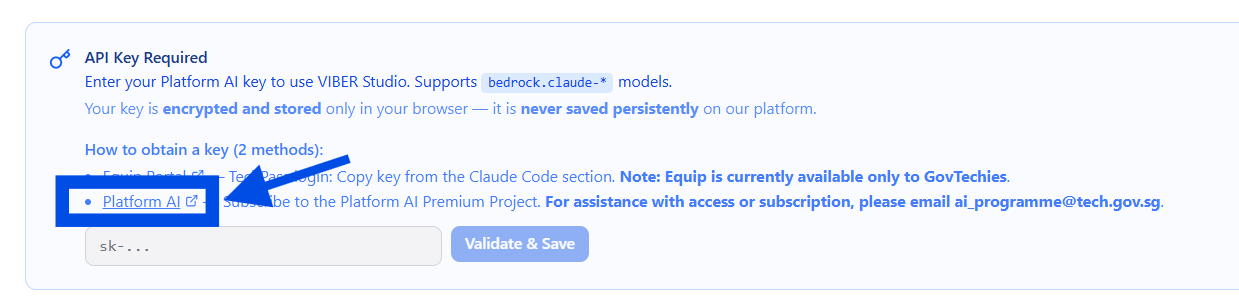
☑️ You will need a API Key to proceed. Click the link to PlatformAI (opens in new tab).
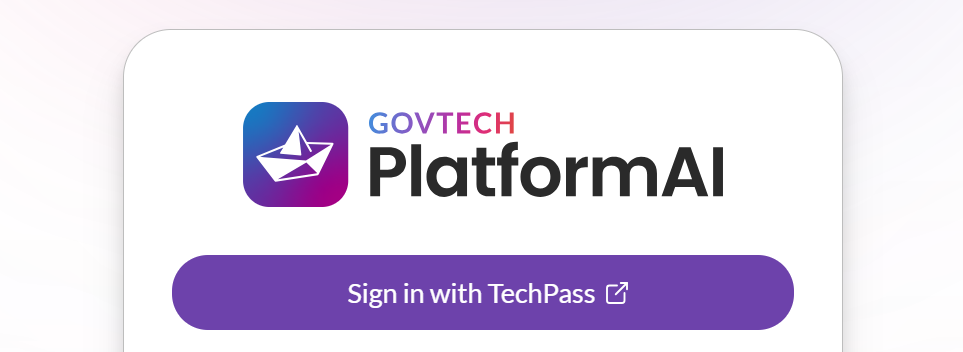
☑️ Log in to PlatformAI using TechPass. Create an account if you do not have one.
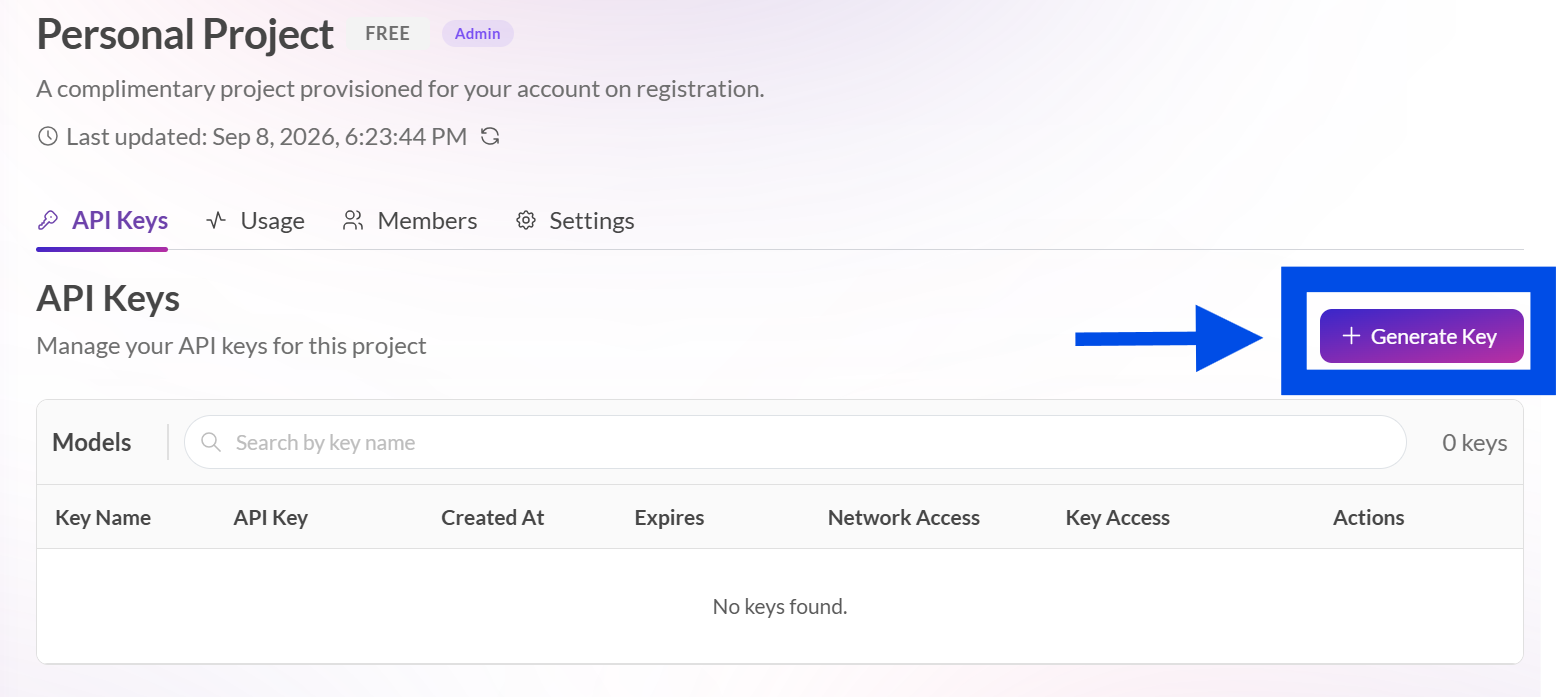
☑️ Go to 'Personal Project' and 'Generate Key'.
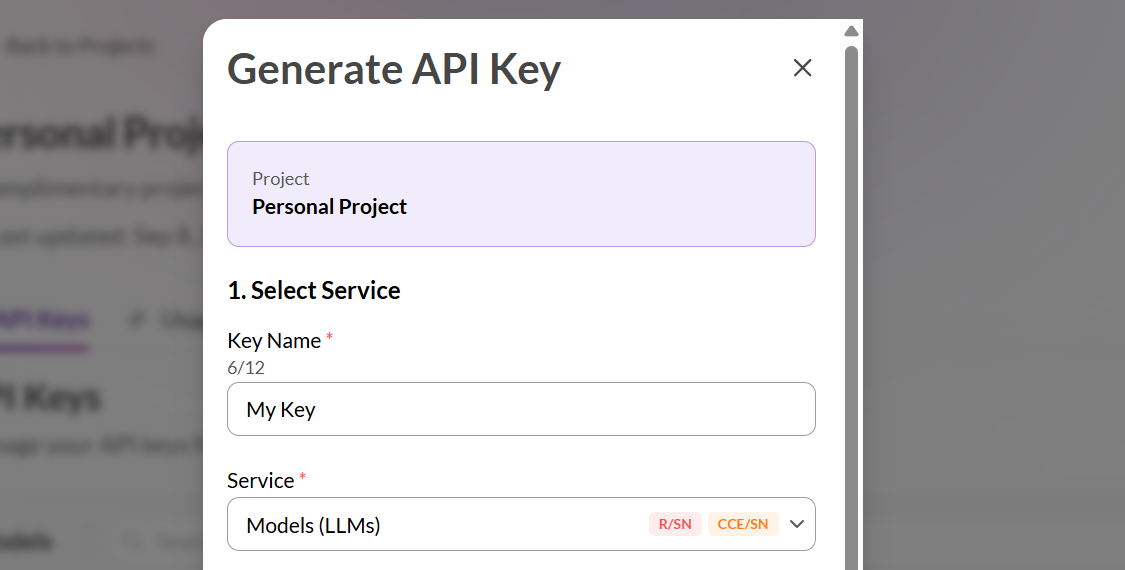
☑️ Configure your API key, you can follow
Configuration Settings
Key Name: Choose a key name
Service: Models(LLM)
Network Access: Approved
Key Expiry: 1 year
Select Models: C(CE)/SN, select all
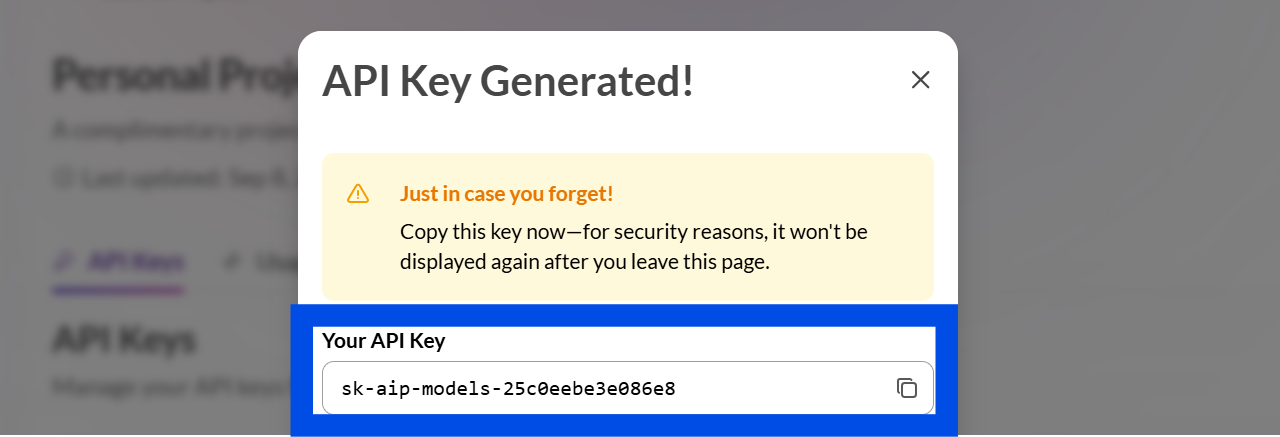
☑️ You have generated your API key! Copy it and keep it somewhere safe.
Step 2: Vibe code in Viber Studio
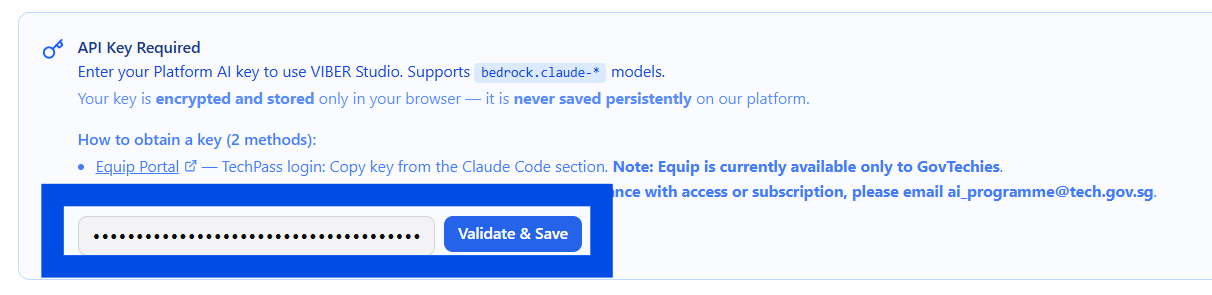
☑️ Paste the API key in Viber Studio, and save it.
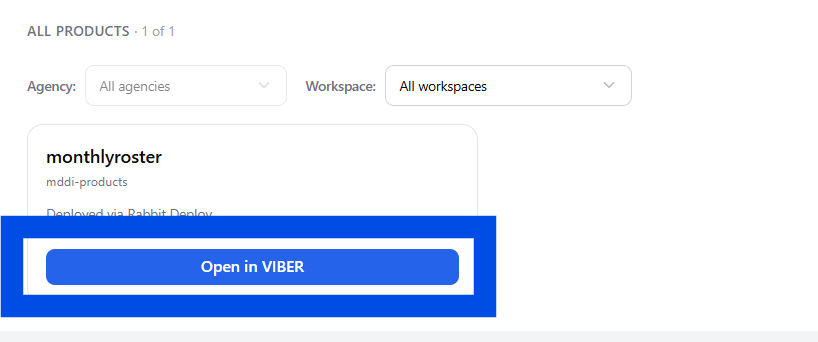
☑️ You're now ready to vibe code. Find your product and click 'Open in VIBER'.
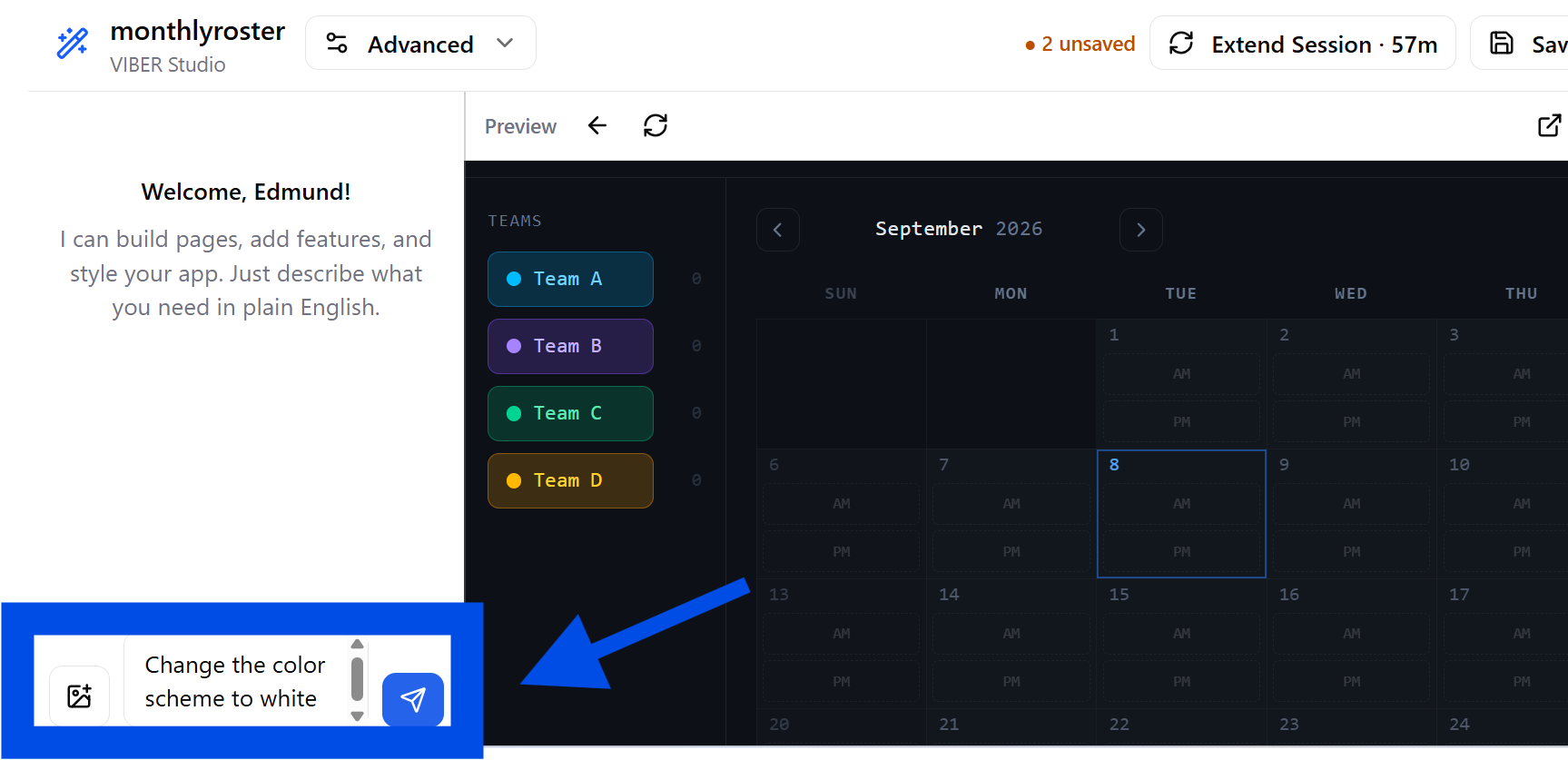
☑️ You can now vibe code your app directly within Rabbit Deploy.
Now it's your turn to try!
Take a prototype you have vibe coded and deploy it with Rabbit Deploy. Once it is live, send the URL to a small group of colleagues or users and ask them to try it.
Rabbit Deploy gives you a straightforward path from a vibe coded prototype to something people can actually test, while handling much of the technical setup needed for deployment.