Daily Email & MS Teams Summary
Scheduling a daily scan of your inbox and Teams and leaving a consolidated summary when you log in
Last updated on 29 July 2026
Why this matters
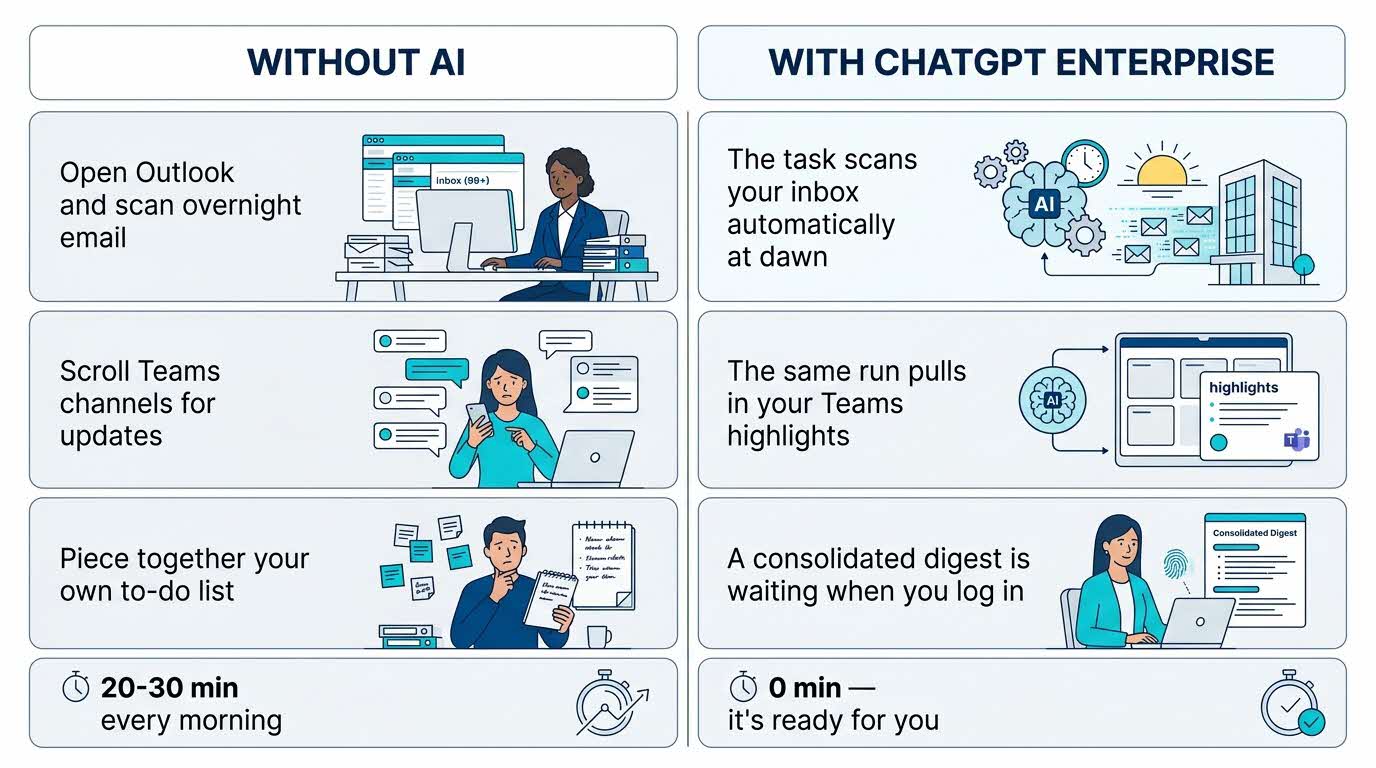
Every morning begins the same way: opening Outlook to scan overnight email, scrolling through your MS Teams to catch up, and piecing together what actually matters. Instead, start your day with a consolidated summary on what needs your attention while you’re getting your favourite morning beverage!
Your five-part recipe - C.R.A.F.T.
Use this structure to guide your thinking. Every effective AI task is built around five components:
C.R.A.F.T. framework
C | 📂 Context | Your Outlook inbox and Teams chats from roughly the last 18-24 hours. |
R | 🎭Role (who the AI should act as) | A daily summary assistant. |
A | ⚡Action (what the AI needs to do) | Scan sources, flag what matters, and compile one report automatically on a given schedule. |
F | 📋Format | Needs your attention → Deadlines → Teams highlights → Quick FYIs. |
T | 🔍Test | Watch the first few runs to make sure the right items are being flagged and reported. |
Here’s what you need for this exercise:
Tools and inputs required
🛠️ Tool | ChatGPT Enterprise (WOG) |
🔗 Feature | Plugins to Outlook and MS Teams |
📂 Your input | Your preferred output format / items to be flagged and presented in the daily report. |
Step-by-step guide
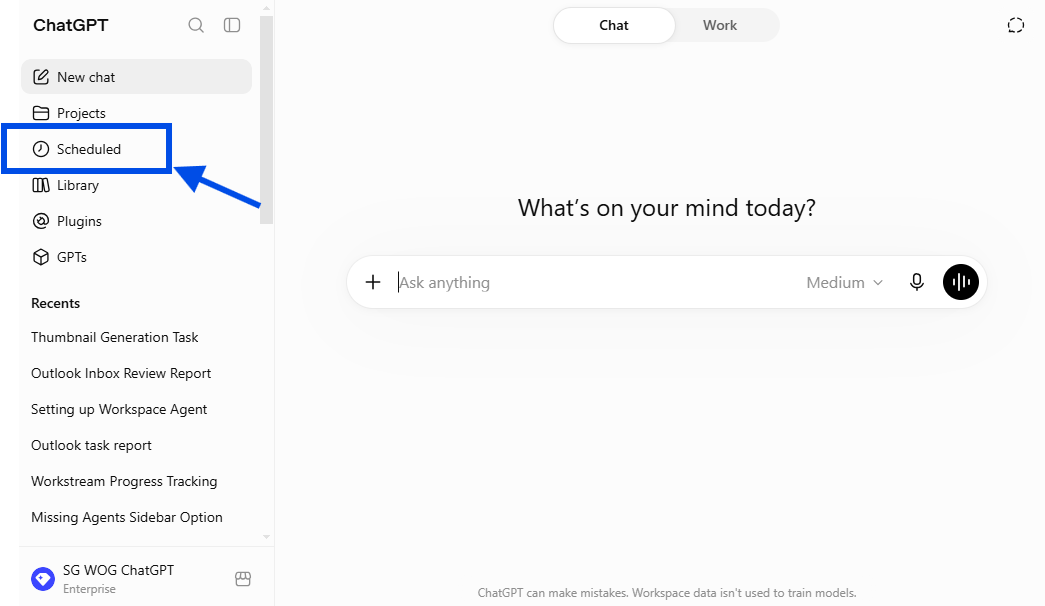
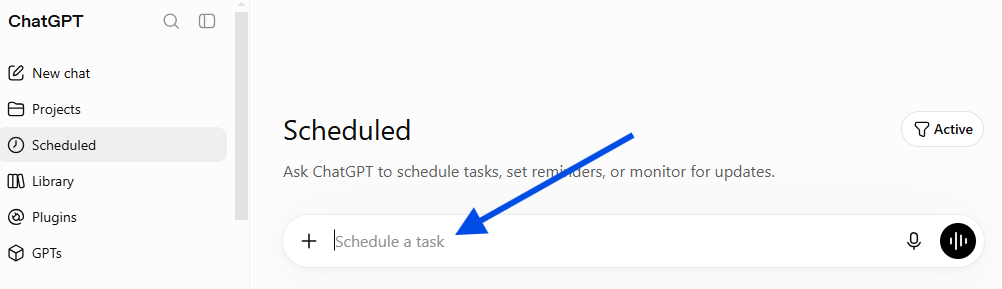
Step 1: Click on Scheduled in the ChatGPT sidebar (left of the screen) and copy and past the prompt below into the chat box.
Note : Feel free to adjust the prompt as necessary so that it is aligned to what you need.
Sample Prompt
Every weekday morning, review my Microsoft Outlook inbox and Microsoft Teams chats for messages received or updated since the previous successful scan.
Review:
Outlook emails in my inbox and relevant email threads;
Microsoft Teams one-to-one chats;
Microsoft Teams group chats;
relevant Teams channel conversations that I can access.
Identify only items that may require my attention, including:
tasks explicitly assigned to me;
questions or requests awaiting my response;
commitments I have made but not yet completed;
upcoming deadlines;
overdue tasks;
follow-ups I promised to make;
messages where someone is waiting for my decision, approval or input;
progress updates that affect an ongoing task, project or workstream;
risks, delays, blockers or dependencies that may require action;
meeting discussions that resulted in a clear task, commitment or deadline.
For Outlook, check the most recent email in each conversation before flagging an item.
For Microsoft Teams, review the surrounding conversation and the most recent relevant replies before flagging an item. Do not treat a message as outstanding if a later message confirms that it was completed, cancelled, reassigned, answered or superseded.
Where the same task appears in both Outlook and Teams, combine it into one report item and reference both sources. Do not create duplicate entries.
Prepare one consolidated report with the following sections:
Urgent today
Items that are overdue, due today or due within the next two working days.
Upcoming actions
Items due after the next two working days.
Replies required
Emails or Teams messages that appear to require a response from me.
Follow-ups
Commitments, unanswered conversations or matters I should follow up on.
Risks and blockers
Delays, dependencies, unresolved issues or workstreams that may require intervention.
Progress updates
Material updates on ongoing workstreams that I should be aware of, even where no immediate action is required.
For information
Important updates that do not currently require action.
For every item, include:
a short description;
the relevant project or workstream, where identifiable;
the person, team or organisation involved;
the owner of the action, where identifiable;
the confirmed deadline, where available;
the current status;
the recommended next action;
the date of the supporting message;
whether the source is Outlook, Teams or both;
a link or reference to the original email or Teams conversation, where available.
Order items by urgency, with overdue and time-sensitive items first.
Clearly distinguish between:
confirmed tasks and deadlines;
inferred actions or deadlines;
progress updates that do not require action;
items where the status is unclear.
Do not invent deadlines, owners, completion statuses or project details. Where no deadline is stated, write “No confirmed deadline”. Where an action is only inferred, label it “Possible action — verify”.
Exclude:
newsletters and marketing messages;
automated system notifications;
routine meeting acceptances or declines;
social or informal conversations;
acknowledgements that do not require action;
tasks that were subsequently completed, cancelled, reassigned or superseded;
duplicate information appearing across Outlook and Teams.
Do not send, reply to, delete, archive, label or modify any Outlook email.
Do not send, reply to, edit, delete or react to any Microsoft Teams message.
End the report with:
the three most important actions for today;
the total number of outstanding items;
the number of items awaiting my reply;
the number of upcoming deadlines;
the most significant risks or blockers;
any items that require my verification.
Send me a ChatGPT notification when the report is complete.
Step 2: Run a test run of the task and review the output report. Make the necessary adjustments to your prompt to ensure that all the information you require is being flagged and compiled, while eliminating any redundant information by refining your prompt.
What you get
A consolidated morning summary of what needs your attention across Outlook and Teams.
Delivered automatically, before you start your day.
Tips
Schedule the task at a time just before you start your work day.
15 minutes ahead of your usual login means it’s fresh and waiting.
Tune the window.
Match the lookback to your last check-in. 18 hours suits an overnight gap; widen it after leave.
Keep tasks few and specific.
A handful of well-defined tasks works far better than many loose ones.
Take 10 minutes to set-up your daily summary report task.
⚡ Review Critically. Make sure that the task gives you exactly what you need in the report and do away with any redundant information that is being flagged and compiled.
🔍 Test and Share. Save the task and share your prompt with the team so everyone starts the day briefed.